Appearance
Variant images
When a product comes in colors, Lumevia can show only the photos of the color the customer picks, on the product page, in quick view and on product cards. These settings decide which option does that and how its swatches look.
Open it from Theme settings (the gear icon at the top left of the editor) → Variant images.
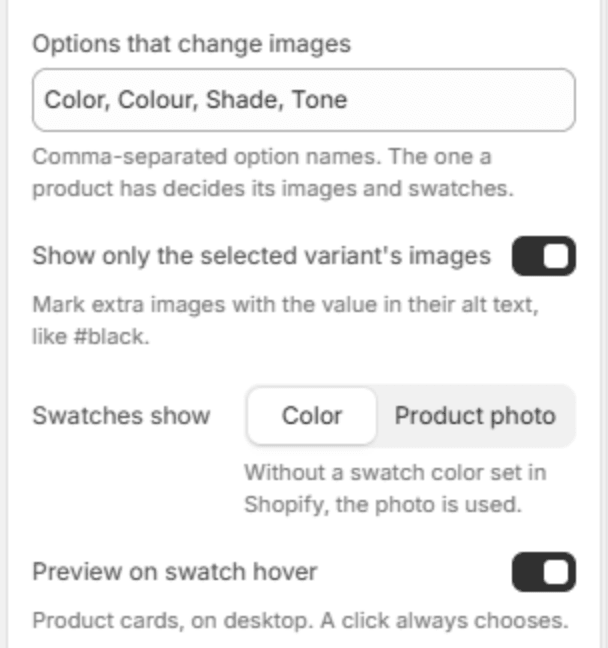
| Setting | Description |
|---|---|
| Options that change images | The option names that carry their own photos, separated by commas. The default, Color, Colour, Shade, Tone, covers the usual names in English. If your option is called something else, such as Finish, add it here. The first matching option on a product is the one whose values get photos and swatches. |
| Show only the selected variant's images | The gallery shows the photos of the chosen color only, plus any photos shared by all colors. Turn it off to always show every photo. |
| Swatches show | Color shows the swatch color you set for each value in Shopify; Product photo shows a small photo of that color instead. A value without a swatch color uses its photo. |
| Preview on swatch hover | On a computer, pointing at a swatch on a product card previews that color's photo. A click always chooses the color. |
Note
To tell Lumevia which photos belong to which color, see Variant images and swatches. It takes a variant image per color, and a short marker such as #black in the alt text of any extra photos.