Appearance
Header
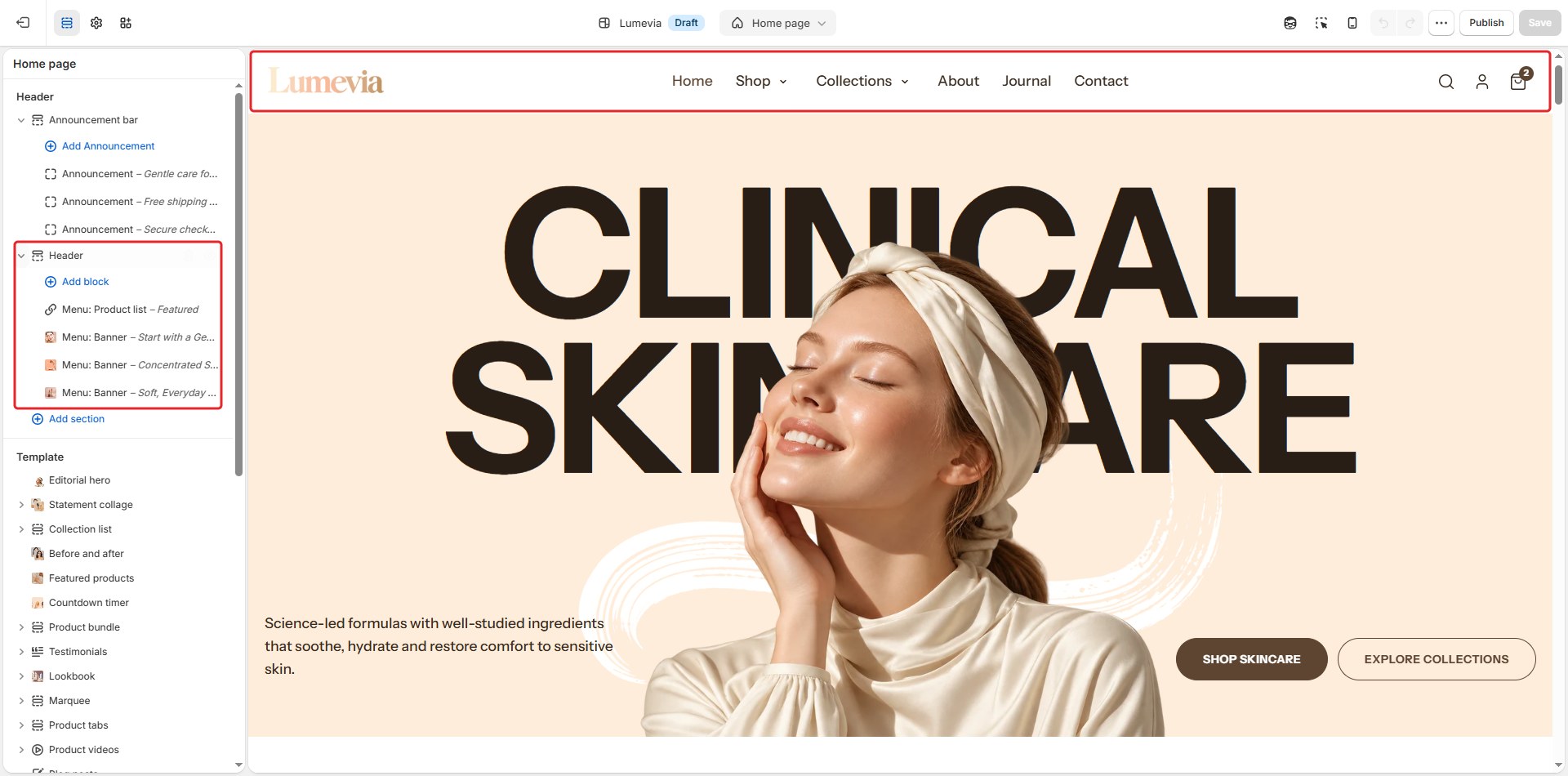
The header sits at the top of every page. It holds your logo, the main menu and the search, account and cart icons. On a phone, the menu moves into a drawer that opens from the Menu button in the Mobile navigation bar at the bottom of the screen.

Find it in the editor
The header is in the Header group at the top of the sidebar, under the announcement bar. Because it is part of a group, it appears on every page and you edit it once.
How the menu works
The links come from a menu you build in the Shopify admin under Content → Menus (see Navigation menus). A Shopify menu has up to three levels, and Lumevia draws each item according to what is under it:
- An item with no links under it is a plain link.
- An item with links under it opens a dropdown list.
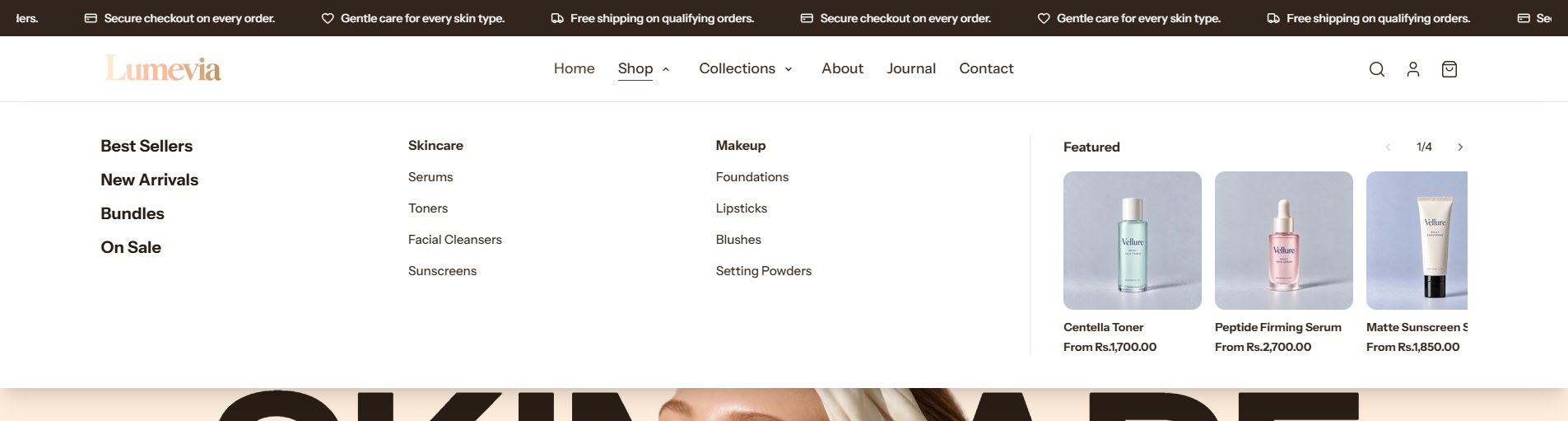
- An item whose links have their own links opens a mega menu: a wide panel with one column per second-level link and its third-level links listed beneath.
You can add banners and a row of products to any top-level item with the header's blocks (see Blocks below). An item with a banner or a product row always opens as a mega menu.
Section settings
General
| Setting | Description |
|---|---|
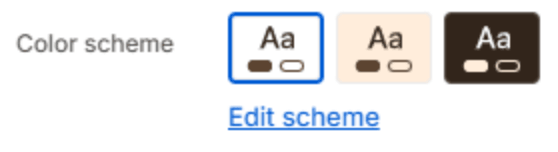
| Color scheme | The colors of the header, its menus and the mobile menu. Schemes are edited in Theme settings → Colors. |
Logo
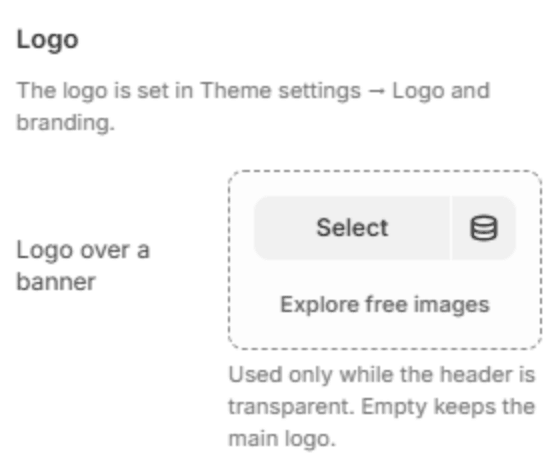
The logo itself, and its width, are set once in Theme settings → Logo and branding.
| Setting | Description |
|---|---|
| Logo over a banner | A second logo, usually a white one, for when the header is transparent over a picture. Leave it empty to keep the main logo. The header turns transparent when the first section on a page is an Editorial hero or a Page banner with Transparent header turned on. |
Layout
| Setting | Description |
|---|---|
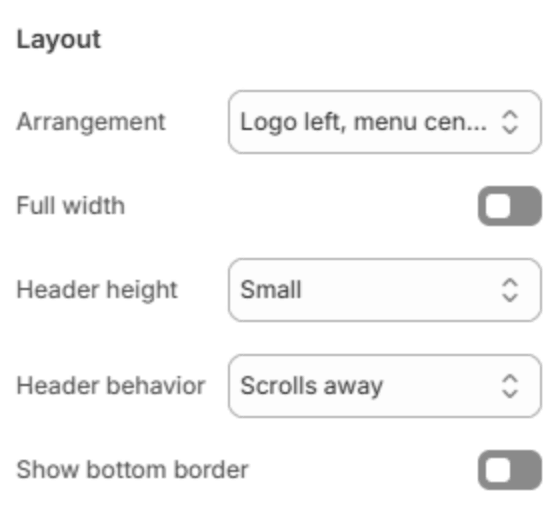
| Arrangement | Where the logo and the menu sit on a large screen: Logo left, menu centered, Logo left, menu beside it, Logo above the menu, or Menu left, logo centered. On a phone the logo sits on the left and the icons on the right. |
| Full width | Runs the header, and its mega menus, from edge to edge instead of within the page width. |
| Header height | How tall the header is: Small, Medium or Large. |
| Header behavior | What happens as the customer scrolls down: Scrolls away with the page, stays Always visible at the top, or Reveal on scroll up, which hides it while reading down and brings it back as soon as the customer scrolls up. |
| Show bottom border | Draws a thin line under the header. |
Navigation menu
| Setting | Description |
|---|---|
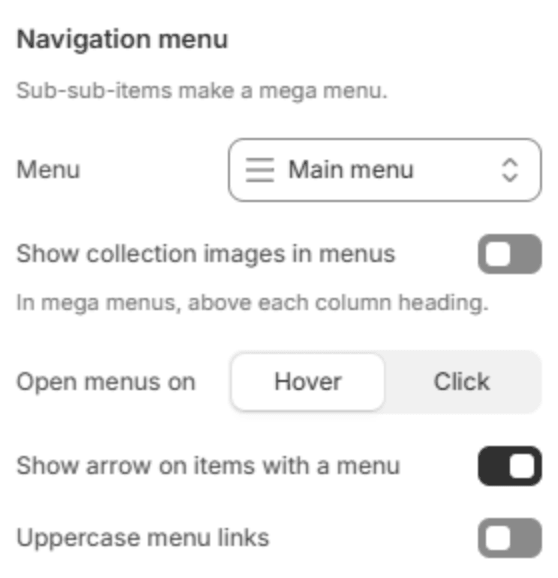
| Menu | The menu the header shows, on a computer and in the mobile menu. Menus are edited in the Shopify admin under Content → Menus. |
| Show collection images in menus | In a mega menu, shows the collection's image above each column heading that links to a collection. |
| Open menus on | Hover opens a dropdown or mega menu when the pointer reaches it; Click opens it only when the customer clicks the arrow beside the item. |
| Show arrow on items with a menu | Shows a small arrow beside items that open a menu. Turned off, the arrow still appears for customers who use the keyboard, so every menu can be reached. Shown when Open menus on is Hover. |
| Uppercase menu links | Writes the top-level menu links in capital letters. |
Mobile menu
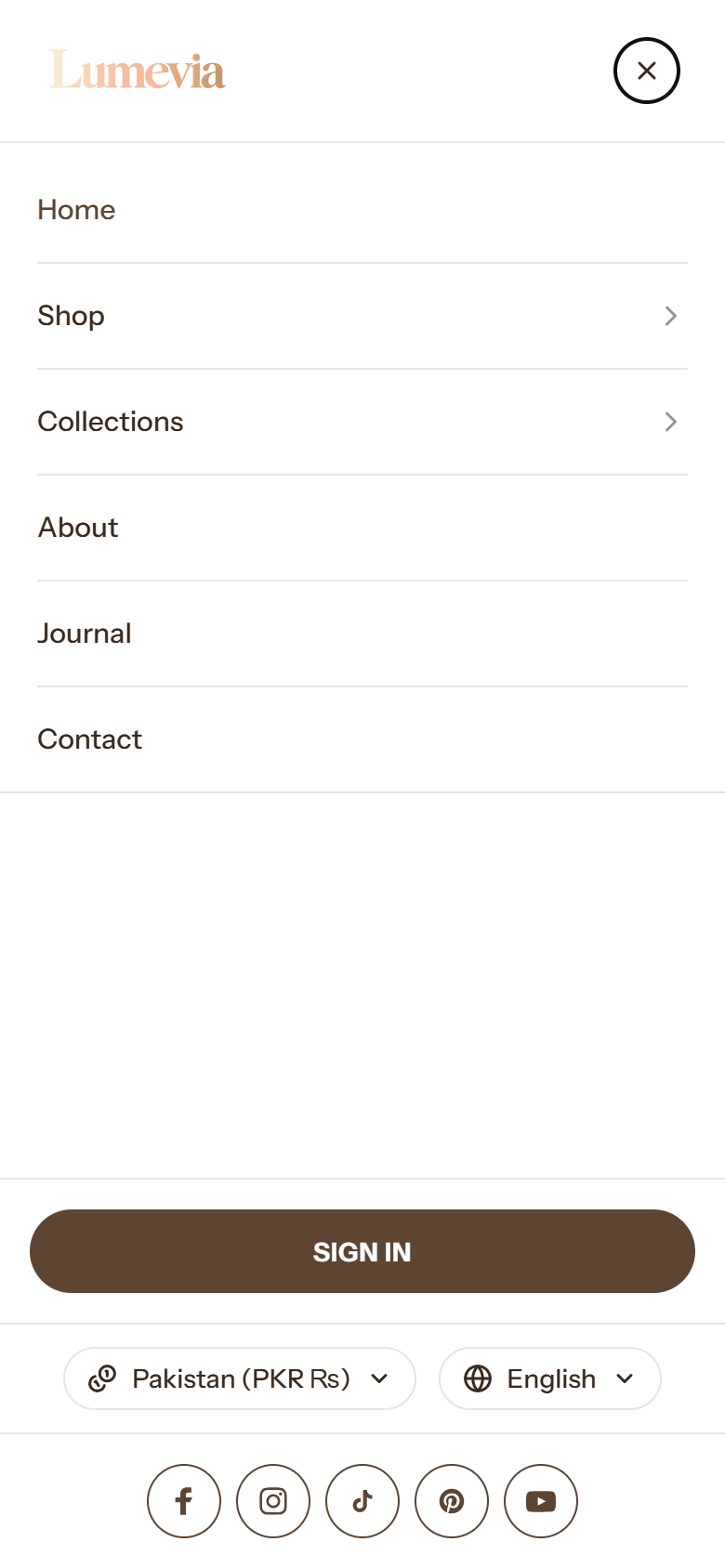
On a phone the menu opens in a drawer from the Menu button in the Mobile navigation bar, one level at a time: tapping an item with links under it slides to those links, with a back arrow to return.
Note
If you hide the Mobile navigation bar or remove its Menu button, a menu icon appears in the header on phones instead, so the menu can always be opened.
| Setting | Description |
|---|---|
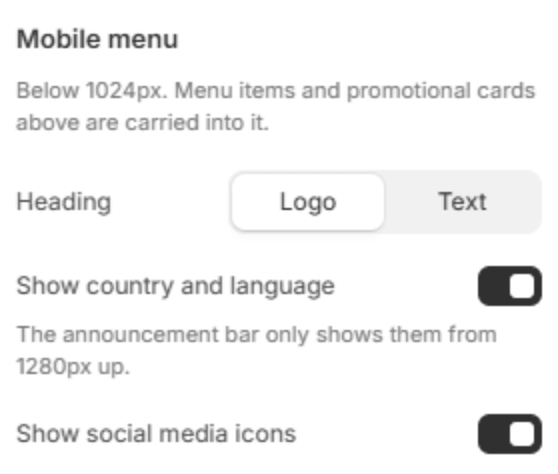
| Heading | What sits at the top of the mobile menu: your Logo, from Theme settings → Logo and branding at its Logo width (mobile), or the word Menu (Text). Without a logo, your store name shows. |
| Show country and language | Adds the country (currency) and language selectors to the bottom of the mobile menu. They appear only when your store sells in more than one country or language. |
| Show social media icons | Adds your social media icons, from Theme settings → Social media, to the bottom of the mobile menu. |
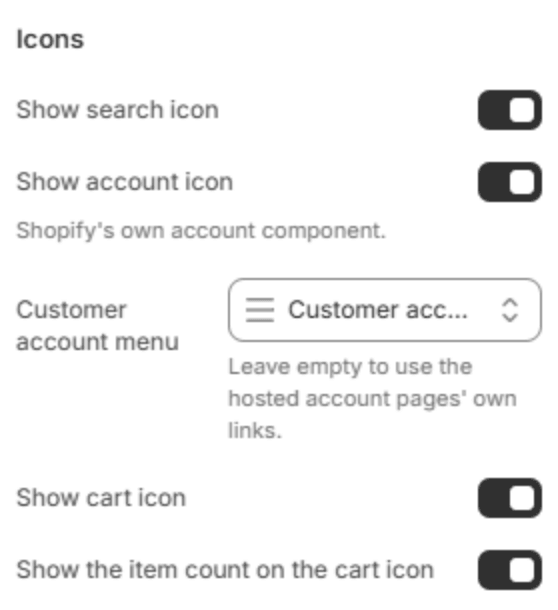
Icons
| Setting | Description |
|---|---|
| Show search icon | Shows the search icon, which opens the search drawer. |
| Show account icon | Shows the account icon. It is Shopify's own account button, so customers can sign in with a one-time code and see their orders. |
| Customer account menu | The links in the account menu, for example Orders and Profile. Leave it empty to use the account pages' own links. |
| Show cart icon | Shows the cart icon, which opens the cart drawer or the cart page (see Theme settings → Cart). |
| Show the item count on the cart icon | Shows how many items are in the cart on the icon. Shown when Show cart icon is on. |
Blocks
Blocks add banners and products to the menu. Each block is tied to one top-level menu item by its name, and you can add several blocks to the same item. To add one, click Add block under Header in the sidebar.
Menu: Banner
A picture card with a heading and a link, for a campaign, a new collection or a bestseller. Banners show in the mega menu on a computer, and under that item's links in the mobile menu.
General
| Setting | Description |
|---|---|
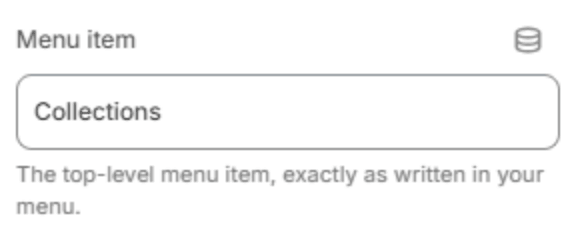
| Menu item | The top-level menu item this banner belongs to, written as it is in your menu, for example Shop. Capital letters don't matter. A name that matches no item shows the banner nowhere. |
Banner

| Setting | Description |
|---|---|
| Image | The banner's picture. |
| Card height | How tall the card is at least: Short, Medium or Tall. Cards in one row match the tallest. |
| Image shape | Straight or Rounded corners on the picture. |
| Image side | Puts the picture on the Right or Left of the card's text. |
| Color scheme | The colors of the card. |
| Content position | Where the text sits in the card: Top, Middle or Bottom. |
| Subheading | A short line above the heading. |
| Heading | The card's heading. |
| Link | Where the card goes. The whole card is the link. |
| Button label | Adds a button to the card. Leave it empty for a card without a button. |
| Button style | Solid or Outlined. Shown when Button label has text. |
Note
On a menu item with columns, two banners fit beside them. On an item without columns, banners fill the panel three to a row.
Menu: Product list
A row of product cards inside a mega menu, for new arrivals or bestsellers. It shows on a computer only. You can add up to six.
General
| Setting | Description |
|---|---|
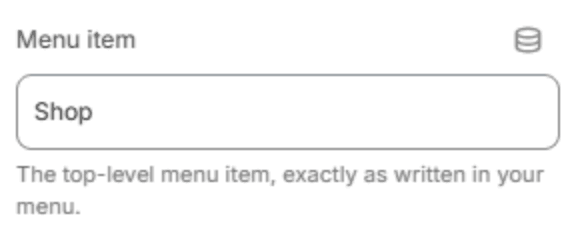
| Menu item | The top-level menu item this row belongs to, written as it is in your menu. Capital letters don't matter. |
Products
| Setting | Description |
|---|---|
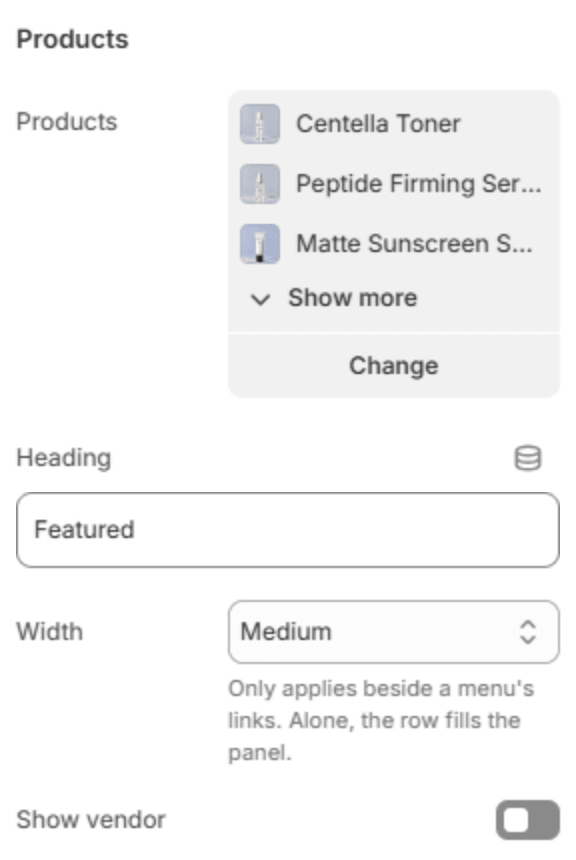
| Products | The products to show. The row scrolls when they don't all fit. |
| Heading | The heading above the row. Shown when products are chosen. |
| Width | How much of the panel the row takes beside a menu's columns: Narrow, Medium or Wide. On an item without columns, the row fills the panel. Shown when products are chosen. |
| Show vendor | Shows each product's vendor above its title. Shown when products are chosen. |
Note
The name in Menu item must match a top-level item of the header's menu. If you rename that item later, update its blocks too.