Appearance
Marquee
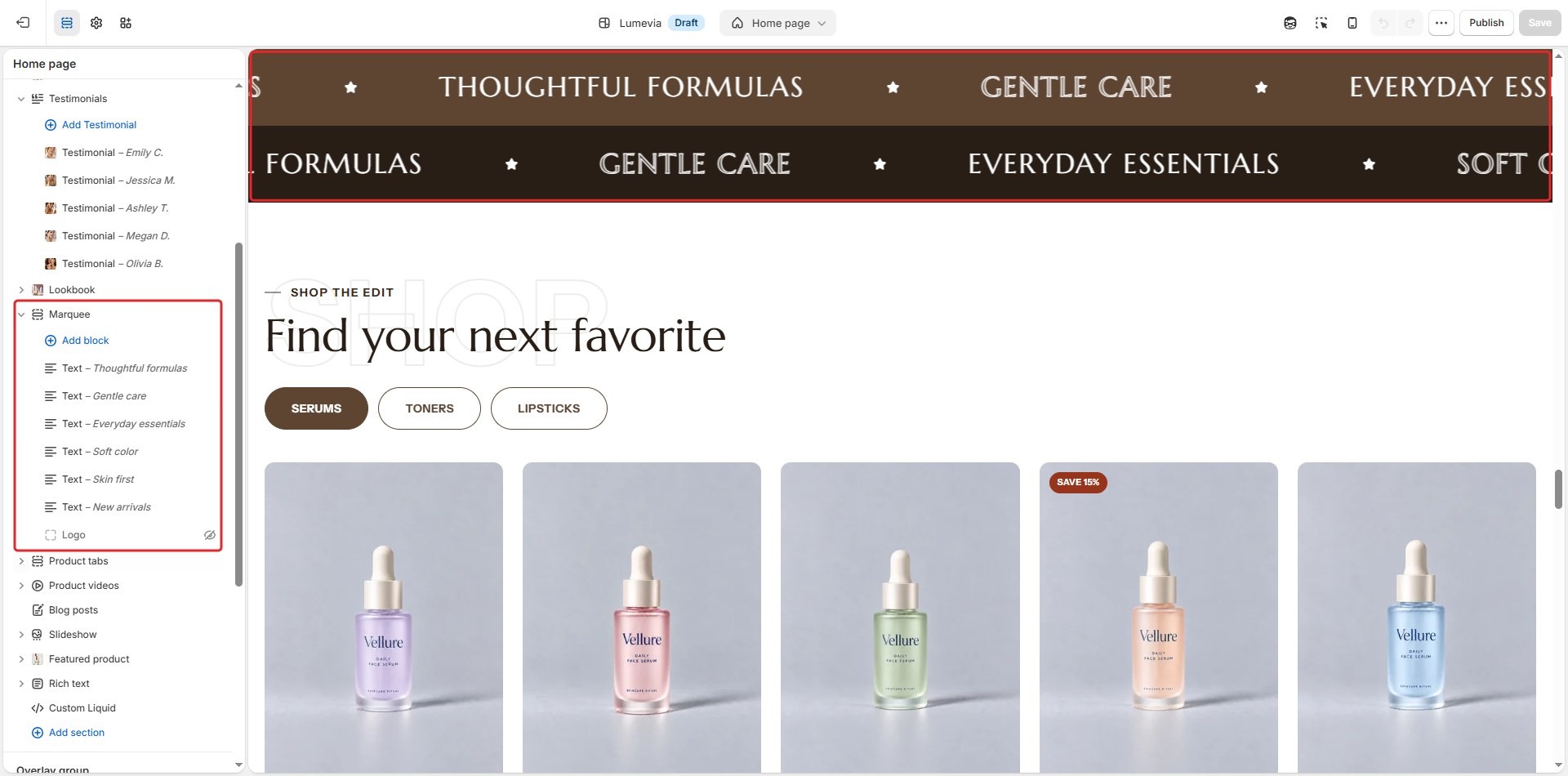
The marquee runs words or logos across the page in an endless loop: brand promises, ingredients, press logos. With two rows, they run in opposite directions, and they speed up as the customer scrolls.

Find it in the editor
On the home page and the product page, it is in the Template list. To add it to any page, click Add section and choose Marquee. Each word or logo is a Text or Logo block inside it.
Section settings
General
| Setting | Description |
|---|---|
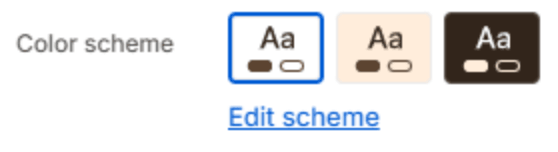
| Color scheme | The colors of this section. Schemes are edited in Theme settings → Colors. |
Rows
| Setting | Description |
|---|---|
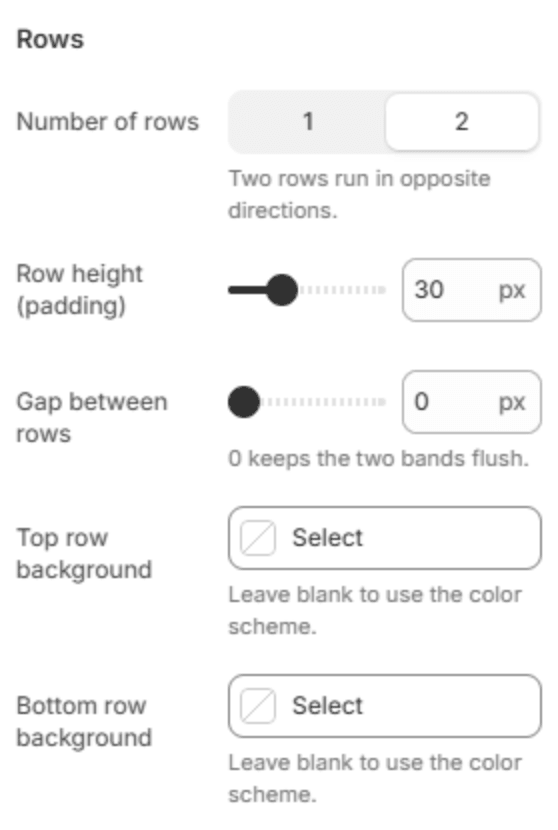
| Number of rows | 1 or 2. Two rows run in opposite directions. |
| Row height (padding) | The space above and below the words in each row (8–80px). Phones get 60% of it and tablets 80%. |
| Gap between rows | The space between the two rows (0–60px). 0 keeps them flush. Phones get 60% of it and tablets 80%. |
| Top row background | The top row's color. Leave it blank to use the color scheme. |
| Bottom row background | The bottom row's color. Leave it blank to use the color scheme. |
Items
| Setting | Description |
|---|---|
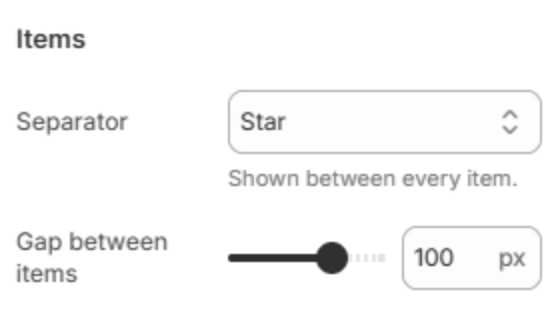
| Separator | A mark between the items: None, Dot, Star, Slash or Plus. |
| Gap between items | The space between items (10–140px). Phones get 60% of it and tablets 80%. |
Text
| Setting | Description |
|---|---|
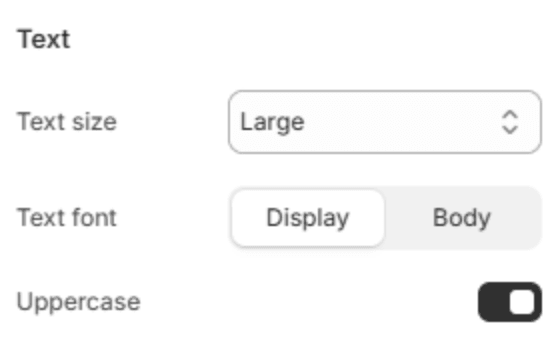
| Text size | Small, Medium, Large, Extra large or Huge. |
| Text font | Display, the heading font, or Body, both from Theme settings → Typography. |
| Uppercase | Writes the words in capital letters. |
Logos
| Setting | Description |
|---|---|
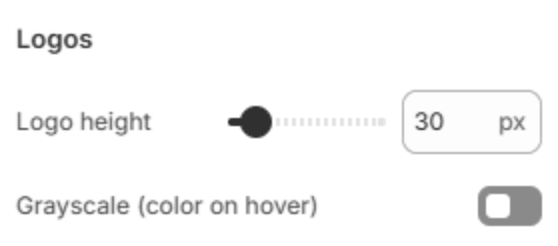
| Logo height | How tall the logos are (20–120px). On phones they are 40px tall at most. |
| Grayscale (color on hover) | Shows the logos in gray, in color when the pointer reaches them. |
Motion
| Setting | Description |
|---|---|
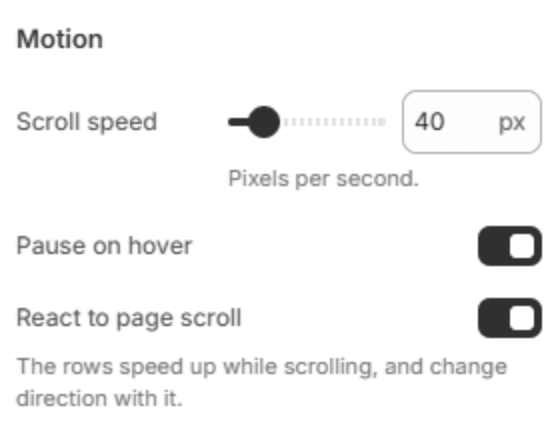
| Scroll speed | How fast the rows move, in pixels per second (10–200). |
| Pause on hover | Stops the rows while the pointer is over them. |
| React to page scroll | The rows speed up while the page scrolls, and follow its direction. |
Section spacing
| Setting | Description |
|---|---|
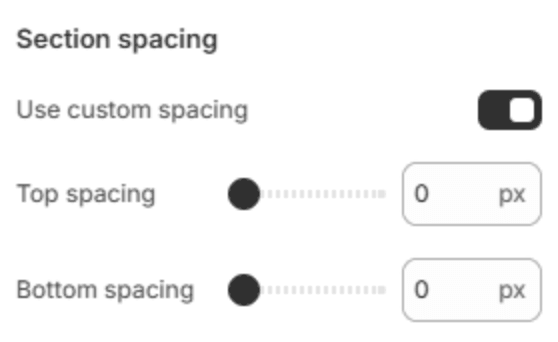
| Use custom spacing | Gives this section its own top and bottom spacing. Off, it uses Section spacing from Theme settings → Layout. |
| Top spacing | Space above the section (0–200px). Phones get 60% of it and tablets 80%. Shown when Use custom spacing is on. |
| Bottom spacing | Space below the section (0–200px). Phones get 60% of it and tablets 80%. Shown when Use custom spacing is on. |
Blocks
Add items with Add block under the section in the sidebar. They run in the order of the blocks.
Text
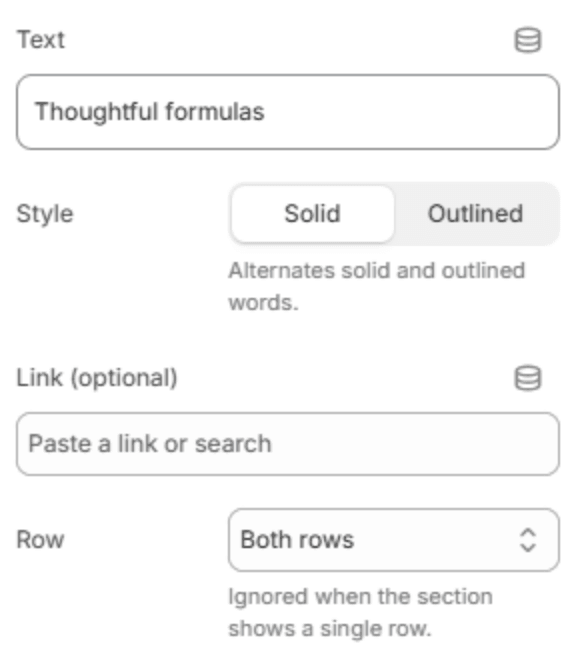
| Setting | Description |
|---|---|
| Text | A word or a short phrase. |
| Style | Solid letters or Outlined letters. Alternating the two gives the classic marquee look. |
| Link (optional) | Makes the item a link. |
| Row | Which row the item runs in: Both rows, Row 1 (top) or Row 2 (bottom). Ignored with a single row. |
Logo
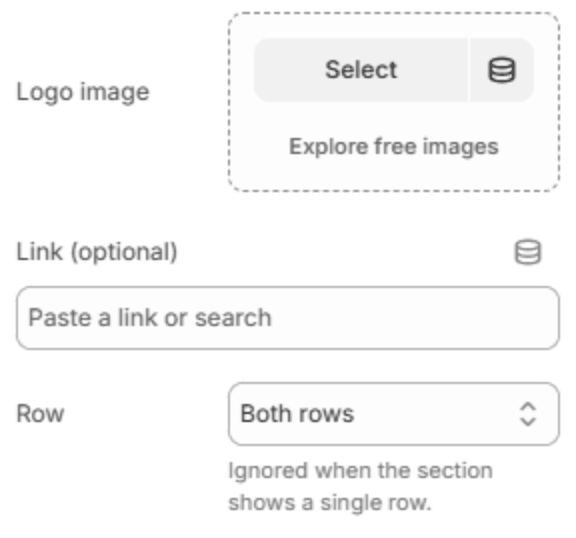
| Setting | Description |
|---|---|
| Logo image | The logo. A transparent PNG or an SVG works best. |
| Link (optional) | Makes the logo a link. |
| Row | Which row the logo runs in: Both rows, Row 1 (top) or Row 2 (bottom). Ignored with a single row. |
Note
In the editor, selecting an item stops the marquee and brings that item into view, so you can edit it.