Appearance
Gift card
Lumevia covers both sides of a gift card: the product page where customers buy one, with the option to send it straight to someone else, and the page the recipient opens to see their card.
Selling gift cards
Gift cards are products: create one in the Shopify admin under Products → Gift cards, with the amounts you want to offer. Lumevia includes a gift card product template, gift-card, which keeps the product information and drops the skincare sections that don't suit a gift card. Choose it in the gift card's Theme template setting.
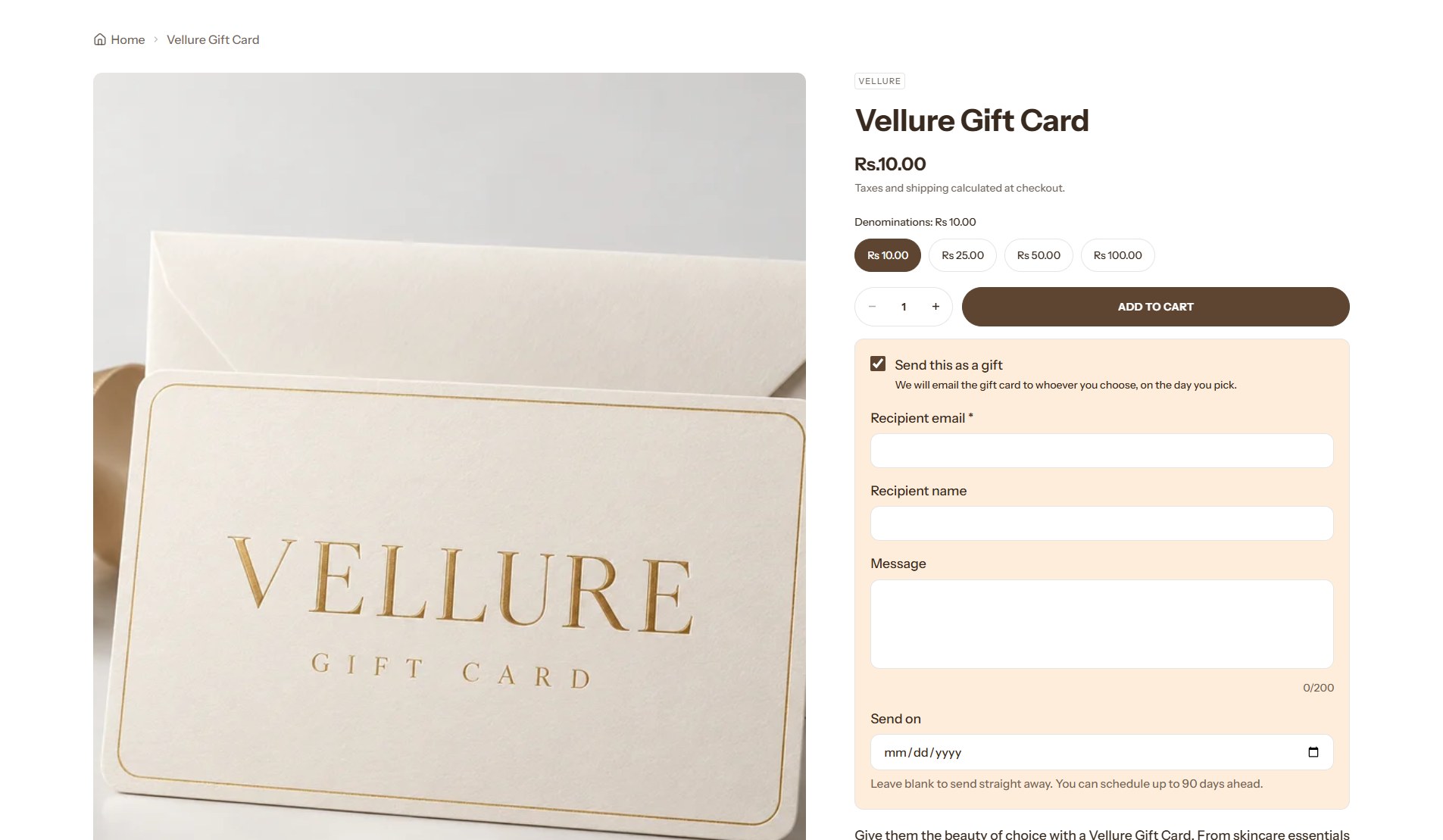
Sending it as a gift
On a gift card product, customers can tick Send this as a gift and fill in:
| Field | What it does |
|---|---|
| Recipient email | Where Shopify sends the gift card. |
| Recipient name | Who it is for, shown in the email. |
| Message | A personal note, shown in the email. |
| Send on | The day to send it, up to 90 days ahead. Leave it empty to send it straight away. |
Shopify sends the gift card on the chosen day, and the customer who bought it gets the receipt.
The gift card page
When someone opens their gift card from the email, they see a page with the card's balance, its code with a Copy code button, the expiry date if it has one, and a QR code to redeem it in a shop. Where available, an Add to Apple Wallet button saves it to their phone, and a Print button gives a clean printout.

The page uses your logo, fonts and colors, and has no settings of its own. To preview it, choose Gift card from the page menu at the top of the editor.
Note
The email that delivers the gift card is designed in the Shopify admin under Settings → Notifications → Gift card created.