Appearance
Variant images and swatches
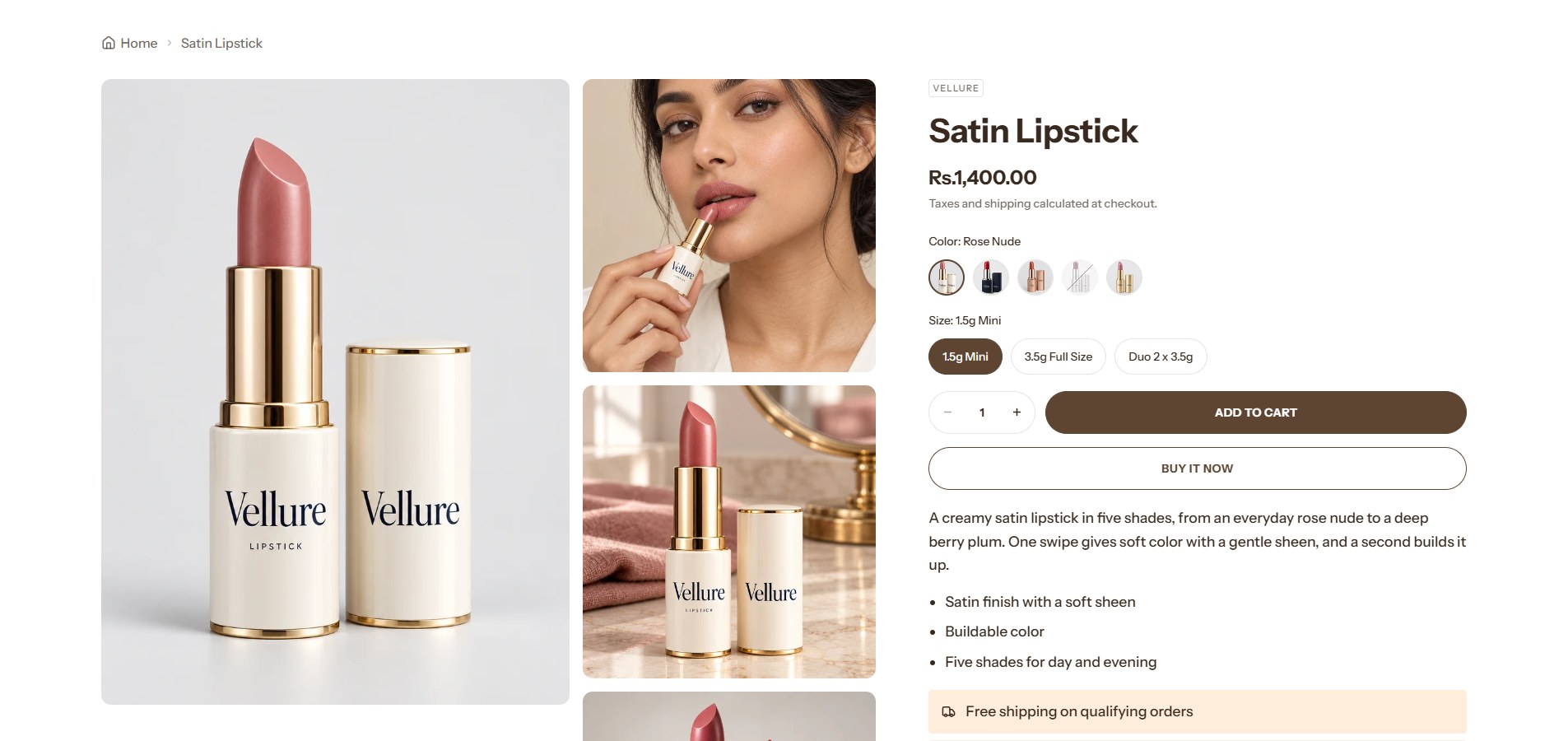
When a product comes in several colors or shades, Lumevia shows the photos of the color the customer picks, on the product page, in quick view and on product cards, and draws a swatch for each color. It needs two things from you: which photos belong to which color, and, if you like, a swatch color for each one.
1. Check the option's name
Lumevia looks for the option whose name is listed in Theme settings → Variant images → Options that change images. The list starts as Color, Colour, Shade, Tone. If your option has another name, such as Finish or Scent, add it to that list. When none of the names match, Lumevia uses the first option that has Shopify swatches set (see step 3).
Only one option per product changes the photos. On a lipstick with Shade and Size, the shade changes the photos and the size does not.
2. Tell Lumevia which photos belong to each color
Use either of these, or both together:
- A variant image. In the Shopify admin, open the product, click a variant in the Variants list and choose its image. That photo then belongs to that variant's color. Variants of the same color, such as Rosewood / 3 g and Rosewood / 5 g, can share one photo.
- A marker in the alt text. For extra photos of one color, end the photo's alt text with
#and the color's name, for exampleThe satin finish on lips #rosewood. You can also write the option's name first:#shade_rosewood. Capital letters, spaces and hyphens don't matter:#rose woodand#rose-woodboth match Rose Wood.
Photos with neither show with every color. Use that for pictures that suit them all, such as the texture, the packaging or the product in use.
| Photo | Alt text | Shows with |
|---|---|---|
| The bullet in Rosewood, chosen as the Rosewood variant's image | Satin lipstick in Rosewood | Rosewood |
| A swatch of Rosewood on skin | Rosewood on skin #rosewood | Rosewood |
| The lipstick's case | The gold case | Every color |
To edit a photo's alt text, open the product, click the photo, and choose Add alt text or Edit alt text.
Note
Lumevia takes the marker off before the alt text reaches the page, so customers and screen readers never see #rosewood. A marker that doesn't match any color, such as a typing mistake, is ignored: the photo then shows with every color, so nothing is ever hidden by accident.
To always show every photo whichever color is chosen, turn off Show only the selected variant's images in Theme settings → Variant images.
3. Give each color a swatch
A swatch is the small circle or square a customer clicks to choose a color. Lumevia draws one for each color in this order:
- The swatch you set in Shopify. In the admin, give the product a category, open the Color option in Variants, and connect it to the Color category metafield. Each color then becomes an entry where you set its color, or a pattern image for a shimmer or a print. One entry can be reused on every product in that shade. Shopify explains the steps in Adding color swatches using category metafields.
- The color's photo, when no swatch is set in Shopify.
- The first two letters of the color's name, when there is neither.
To show a small photo of each color in place of the swatch colors, choose Product photo under Swatches show in Theme settings → Variant images.
Where the swatches appear
| Where | What the customer sees |
|---|---|
| Product page and quick view | A swatch for every color. Choosing one changes the photos, the price and the stock message. The Variant picker block decides whether other options show as swatches or as labeled buttons; see Product page. |
| Product cards | Up to five swatches under the price, then a count of the rest, such as +3, which opens the product. Choosing a swatch changes the card's picture and price, and the card's links then open the product in that color. |
| Filters | A color filter can show swatches too. In the Search & Discovery app, open the filter and choose a swatch style for it; see Filters. |
A sold-out color is crossed out, and can still be chosen, so the customer sees its photos and a Sold out button rather than a color that has disappeared.
Note
An option with only one value, such as a product that comes in a single shade, shows no swatches. There is nothing to choose.