Appearance
Animations
Lumevia moves gently: sections rise into place as they scroll into view, drawers glide in and out, and buttons and links respond to the pointer. Every movement takes its timing from this page, so the whole store keeps one rhythm.
Open it from Theme settings (the gear icon at the top left of the editor) → Animations.
General

| Setting | Description |
|---|---|
| Reveal sections on scroll | Headings, cards and images fade and rise into place as they scroll into view. Turn it off and everything is simply there. Each section also has its own Animate on scroll setting. |
| Smooth scrolling | Softens scrolling with a mouse wheel or trackpad. Touch screens keep their own scrolling. |
Motion
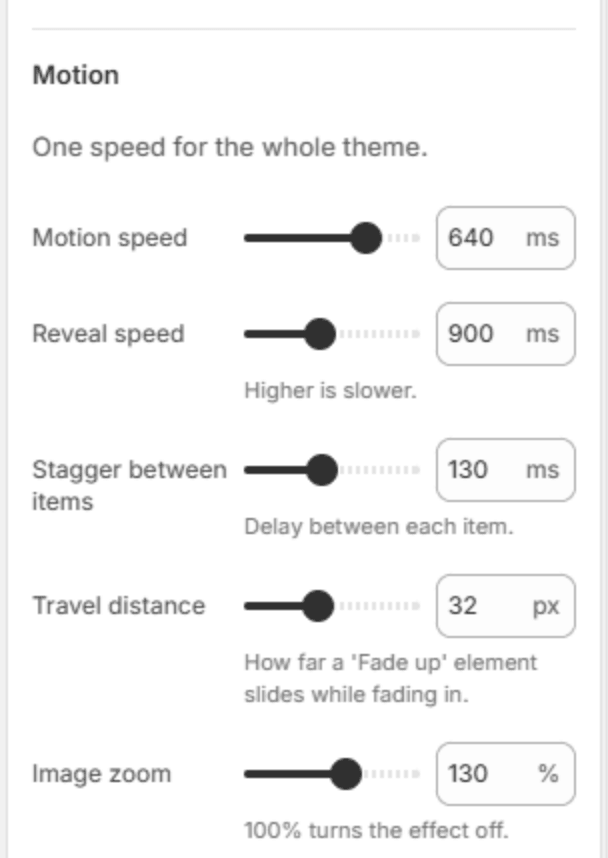
| Setting | Description |
|---|---|
| Motion speed | How long drawers, menus, hover effects and image fades take (200–800ms). Every movement is timed from this one number, so a quicker or slower store stays consistent. |
| Reveal speed | How long a reveal takes as a section comes into view (400–1600ms). Higher is slower. |
| Stagger between items | The delay between items that reveal together, such as the cards in a row (0–300ms). 0 brings them all in at once. |
| Travel distance | How far an item rises while it fades in (0–80px). 0 gives a plain fade. |
| Image zoom | Images start slightly zoomed in and settle to their true size as they appear (100–150%). 100% turns the effect off. |
Note
Visitors who have asked their device to reduce motion see no reveals, no smooth scrolling and no auto-rotating slideshows. The theme editor also keeps slideshows still, so the slide you are editing stays in view.