Appearance
Quick view
Quick view opens a product in a panel over the page: its photos, options, price and Add to cart. It opens from the quick view button on a product card, and from the card's Choose options button on products with options, so the customer always sees what they are adding.
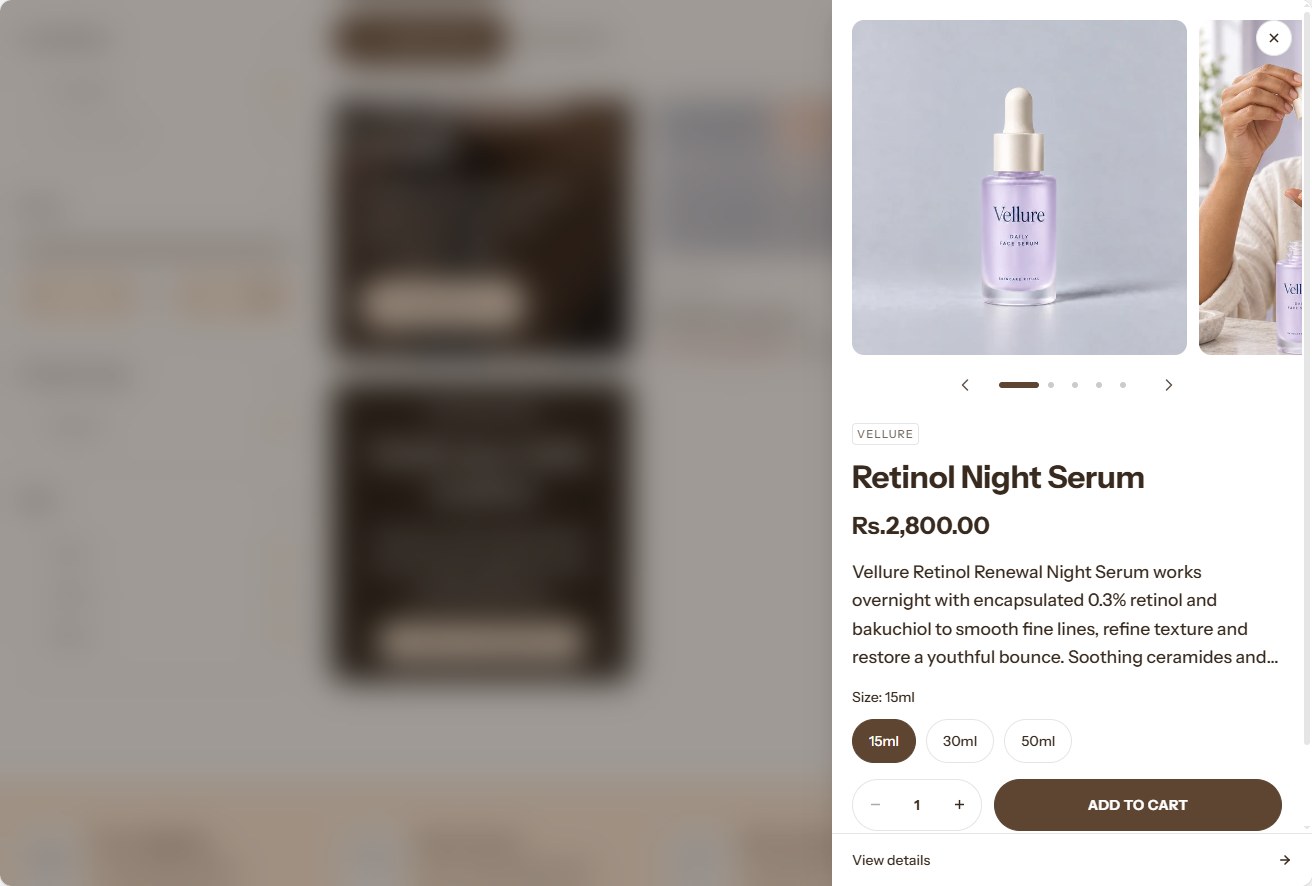
The quick view button on cards is turned on in Theme settings → Product cards.
Find it in the editor
Quick view is in the Overlay group in the sidebar. Click it to open quick view in the preview while you edit it.

Section settings
General
| Setting | Description |
|---|---|
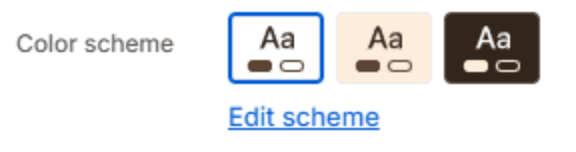
| Color scheme | The colors of the panel. Schemes are edited in Theme settings → Colors. |
Media

| Setting | Description |
|---|---|
| Image shape | The shape of the photos: Square (1:1), Portrait (4:5), Portrait (3:4), or Adapt to first image, which follows the product's first photo. |
Content

| Setting | Description |
|---|---|
| Show vendor | Shows the product's vendor above its title. |
| Show description | Shows the product's description. |
| Show tax and shipping note | Shows a short line under the price about tax and shipping, worded from your store's tax settings. |
| Show quantity selector | Lets the customer choose how many to add. |
| Show dynamic checkout buttons | Shows Shop Pay, PayPal and the other express checkout buttons your store accepts. |
| Show link to the full product page | Adds a link to the product's own page, for customers who want every detail. |
Low stock

| Setting | Description |
|---|---|
| Show low stock warning | Tells the customer when only a few are left of the chosen option. |
| Warn under | The stock level under which the warning shows (1–50). It works only for variants whose inventory Shopify tracks. |