Appearance
Search page
The search page shows the results of a search, with tabs to narrow them to products or to pages and articles, and the same filters and sorting as a collection. A search box at the top lets customers search again, with suggestions as they type.

To open it in the editor, choose Search from the page menu at the top of the editor. A Page banner sits above the Search results section.
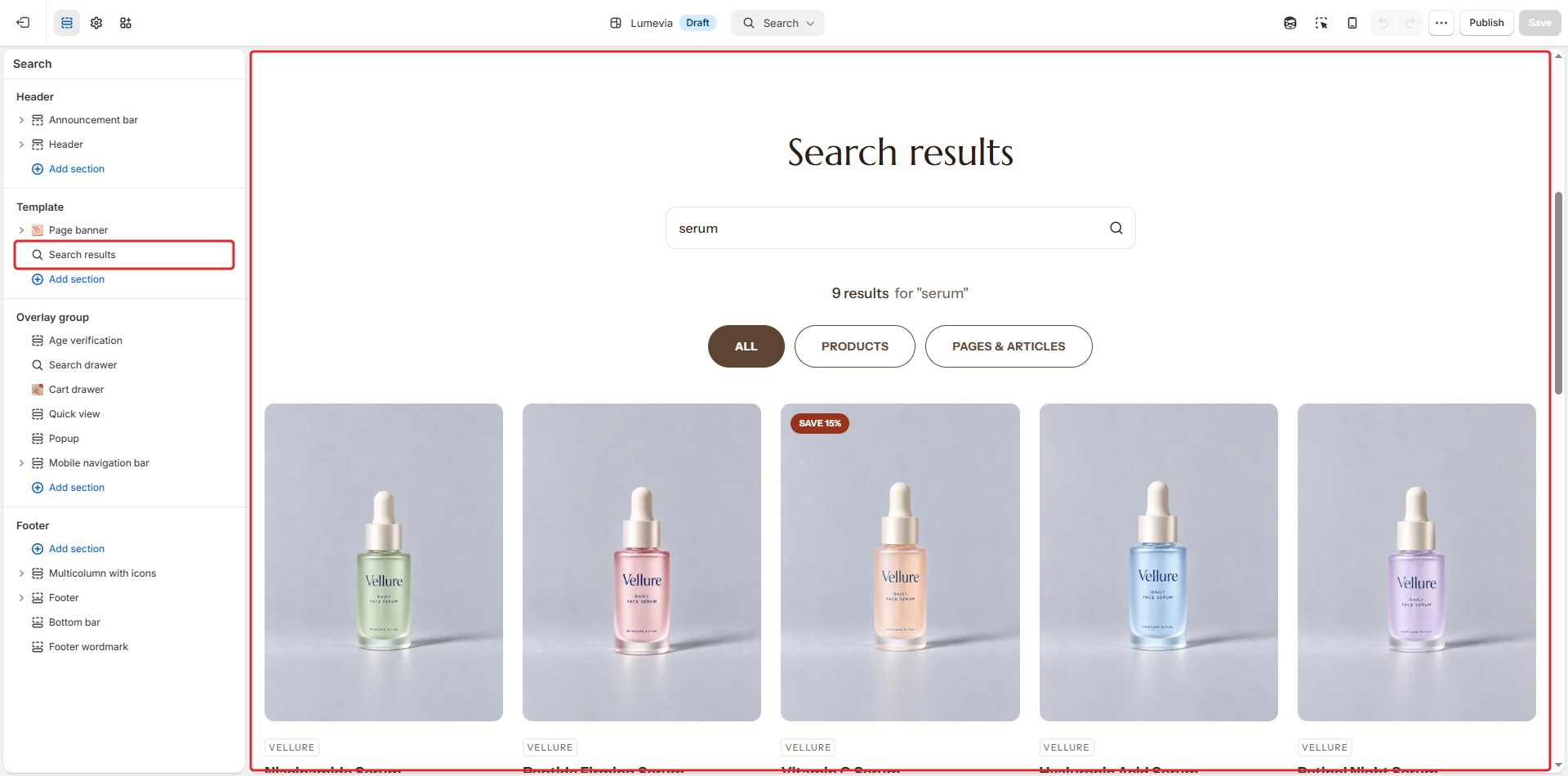
Section settings
General
| Setting | Description |
|---|---|
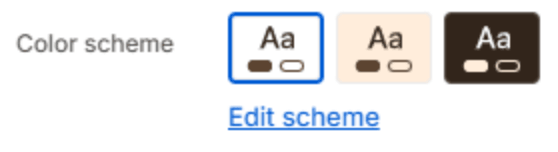
| Color scheme | The colors of this section. Schemes are edited in Theme settings → Colors. |
Section header
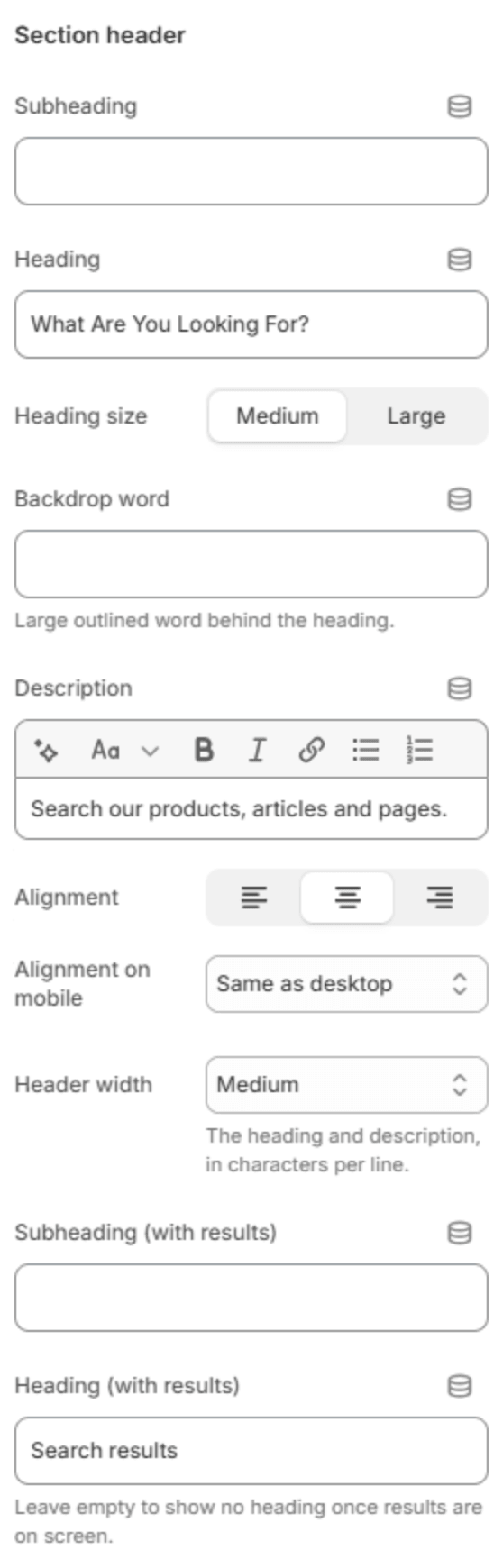
The header has two versions: one for an empty search page, and one shown once there are results.
| Setting | Description |
|---|---|
| Subheading | A short line above the heading, with a small dash beside it. |
| Heading | The heading before a search, for example What are you looking for? |
| Heading size | Medium or Large. |
| Backdrop word | A large outlined word behind the heading. One short word works best; it sizes itself to fit. |
| Description | A short text under the heading. |
| Alignment | Aligns the header to the left, center or right. The result tabs follow it. |
| Alignment on mobile | The alignment below 768px. Same as desktop keeps the alignment above. |
| Header width | How wide the heading and description may run: Narrow, Medium, Wide or Full width. |
| Subheading (with results) | The line above the heading once results are shown. |
| Heading (with results) | The heading once results are shown. Leave it empty to show no heading over the results. |
Content

| Setting | Description |
|---|---|
| Show the search box | Shows a search box at the top of the page. |
| Show suggestions as you type | Shows matching results under the search box as the customer types. It also needs Theme settings → Search → Enable live search suggestions. |
| Show result type tabs | Shows tabs to see All results, Products only, or Pages & articles. |
Filtering and sorting
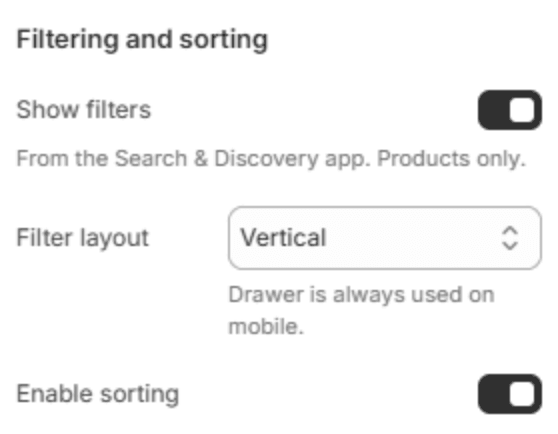
Filters and sorting apply to products. Filters come from the Search & Discovery app; see Filters.
| Setting | Description |
|---|---|
| Show filters | Shows the filters on the products tab. |
| Filter layout | Drawer, Vertical beside the results, or Horizontal above them. Phones always use the drawer. Shown when filters are on. |
| Enable sorting | Lets customers sort the products. |
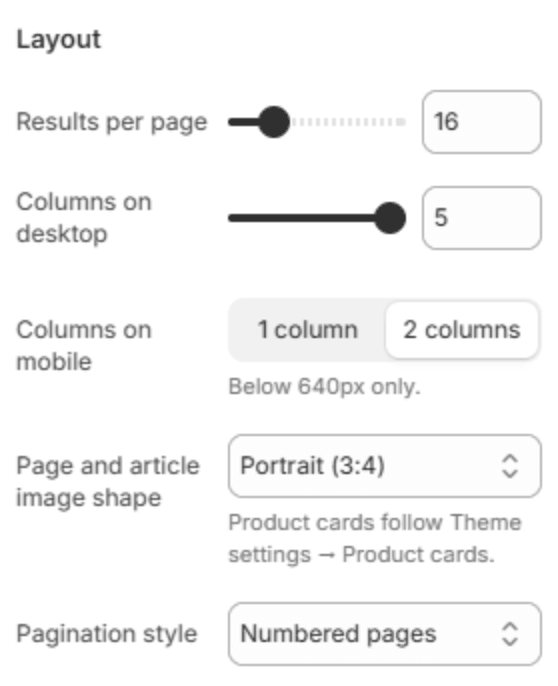
Layout
| Setting | Description |
|---|---|
| Results per page | How many results load at a time (8–48). |
| Columns on desktop | How many results fit in a row on a large screen (2–5). |
| Columns on mobile | 1 column or 2 columns, below 640px. |
| Page and article image shape | The shape of the pictures on article and page results: Square (1:1) or Portrait (3:4). Product cards follow Theme settings → Product cards. |
| Pagination style | Numbered pages, a Load more button, or Infinite scroll. |
Section spacing

| Setting | Description |
|---|---|
| Use custom spacing | Gives this section its own top and bottom spacing. Off, it uses Section spacing from Theme settings → Layout. |
| Top spacing | Space above the section (0–200px). Phones get 60% of it and tablets 80%. Shown when Use custom spacing is on. |
| Bottom spacing | Space below the section (0–200px). Phones get 60% of it and tablets 80%. Shown when Use custom spacing is on. |
Note
To change which products come first for a search, or to add synonyms such as "SPF" for "sunscreen", use the Search & Discovery app in the Shopify admin.