Appearance
Filters
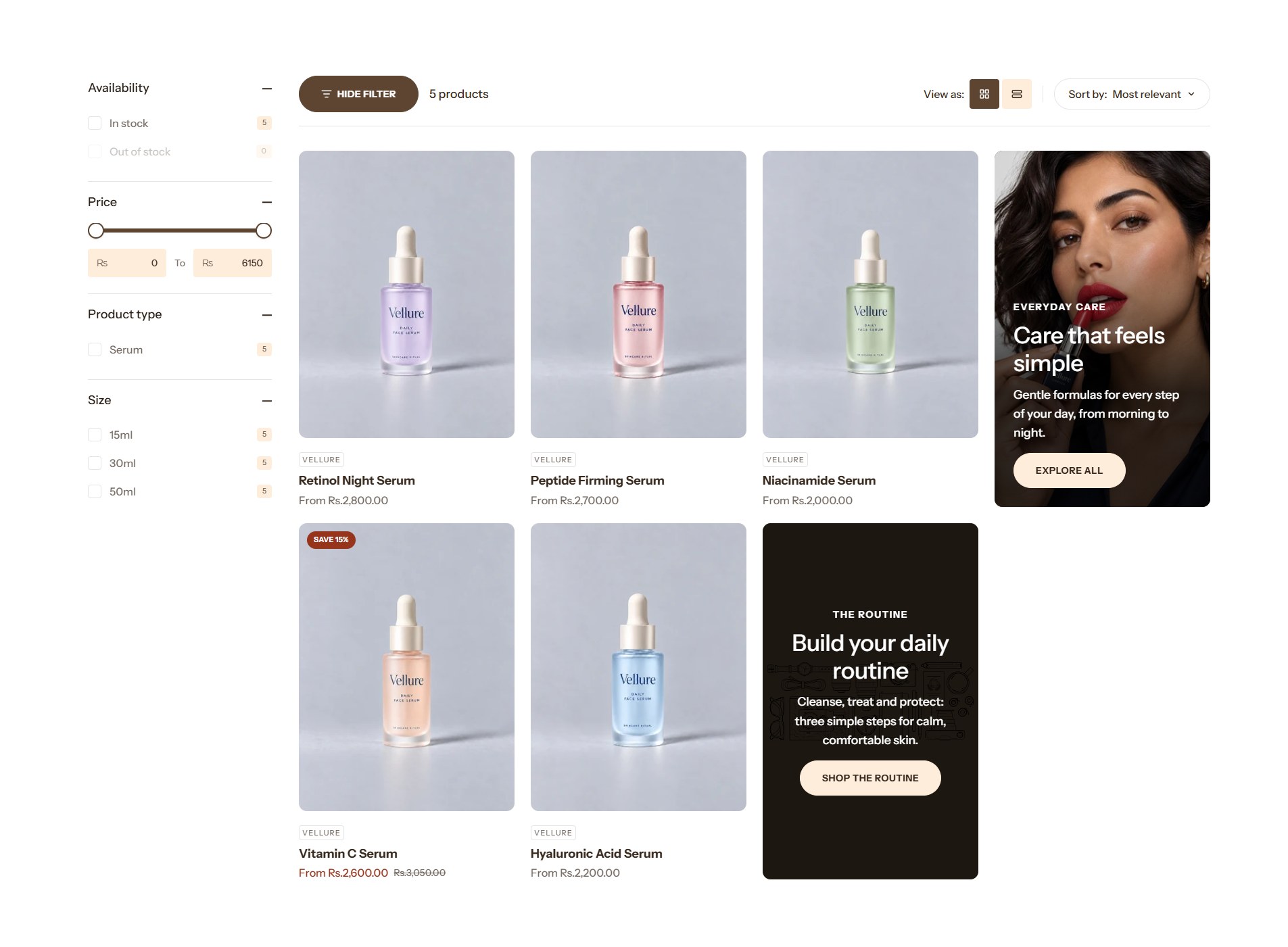
Filters let customers narrow a collection or their search results by price, availability, product type, color, size and more. You choose the filters in Shopify's free Search & Discovery app; Lumevia draws them on the Collection page and the Search page.
1. Choose your filters
- Install the Search & Discovery app.
- In the app, open Filters and click Add filter.
- Choose what to filter by, such as Availability, Price, Product type, Vendor, a variant option such as Color or Size, or a metafield. Save it.
- Drag the filters into the order customers should see them.
For a filter on a color option, you can pick a swatch style in the app. Lumevia then shows the colors as swatches instead of a list of names; see Variant images and swatches.
2. Show them in the theme
On the collection page and the search page, open the Collection or Search results section in the theme editor:
| Setting | What it does |
|---|---|
| Show filters | Turns the filters on for that page. |
| Filter layout | Drawer opens the filters in a panel from the side, Vertical shows them in a column beside the products, and Horizontal shows them in a row above. Phones always use the drawer. |
| Show product counts | Shows how many products each value has, such as Serums (5). Collection page only. |
| Enable sorting | Lets customers sort by price, newest, best selling and so on. |
How customers use them
- Price is a range with two handles, and two boxes for typing the amounts.
- A list with many values shows the first few, then a link such as Show 14 more for the rest.
- Every filter in use appears as a small label above the products. Customers remove one with its ×, or all of them with Clear all.
- The products update straight away, without reloading the page.
Note
A filter only offers the values found in the products of the collection or search being shown. A value with no products, such as a sold-out size, appears grayed out and can't be chosen.
Important
If the counts look wrong, for example In stock (0) on products you know are in stock, Shopify's filter index is out of date. Open the filter in Search & Discovery and save it again, or edit and save one of the products, to refresh it.