Appearance
Cart
The cart type, the free shipping bar, the cart tools and gift wrap apply to both the cart drawer and the cart page, so each is set once and is the same in both.
Open it from Theme settings (the gear icon at the top left of the editor) → Cart.
General
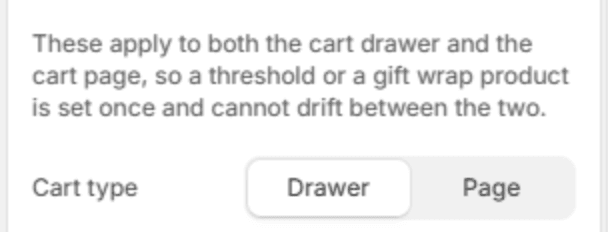
| Setting | Description |
|---|---|
| Cart type | Drawer opens the cart in a panel from the side, so the customer stays on the page they were shopping. Page takes them to the cart page instead. The drawer's own settings are in the Cart drawer section. |
Free shipping bar
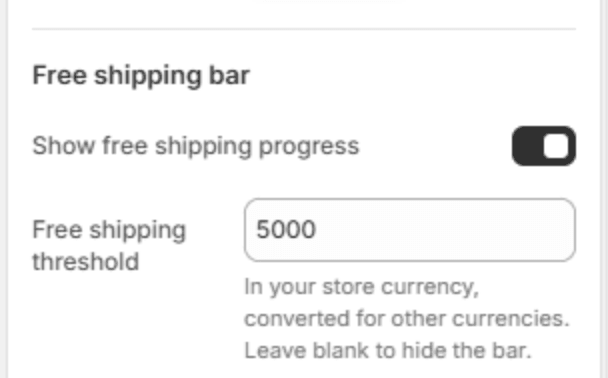
| Setting | Description |
|---|---|
| Show free shipping progress | Shows a progress bar in the cart that tells the customer how much more to spend for free shipping. |
| Free shipping threshold | The order total that earns free shipping, in your store's currency. Customers who shop in another currency see it converted. Leave it blank to hide the bar. Shown when Show free shipping progress is on. |
Important
The bar only tells customers about free shipping; it does not give it. Create the free shipping rate itself in the Shopify admin under Settings → Shipping and delivery, with a minimum order price equal to this threshold.
Cart tools
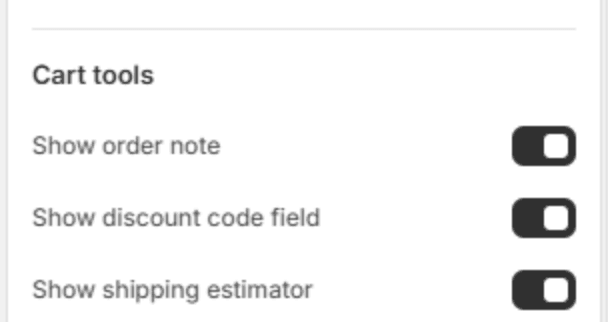
These apply to the cart page and the Cart drawer alike.
| Setting | Description |
|---|---|
| Show order note | Lets the customer leave a note with the order. You see it on the order in the Shopify admin. |
| Show discount code field | Lets the customer enter discount codes in the cart. Applied codes show as chips with a button to remove them. |
| Show shipping estimator | Lets the customer choose a country and postal code to see your shipping rates before checkout. |
Gift wrap
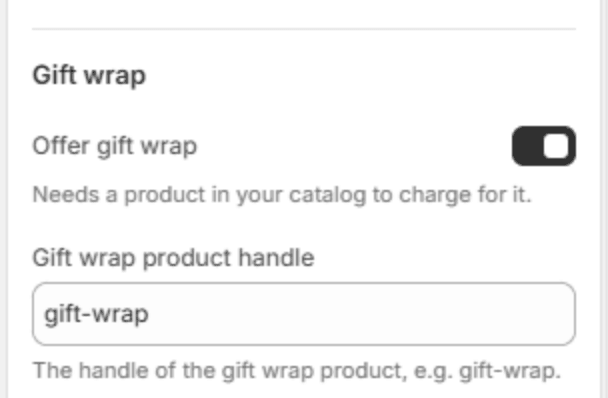
| Setting | Description |
|---|---|
| Offer gift wrap | Adds a "gift wrap" option to the cart. Choosing it adds your gift wrap product to the order and offers a message for the card. In the cart drawer the message opens in a panel; on the cart page it opens under the option. |
| Gift wrap product handle | The handle of the product that charges for gift wrap, for example gift-wrap. Shown when Offer gift wrap is on. |
Set up the gift wrap product
- In the Shopify admin, go to Products → Add product.
- Name it, for example Gift wrap, set its price and add a photo.
- Make it available on the Online Store sales channel, and don't add it to any collection.
- Save it, then copy its handle from the URL at the bottom of the page (Search engine listing), for example
gift-wrap. - Paste the handle into Gift wrap product handle.
Note
To keep the gift wrap product out of search results, in your store and in search engines:
- In the Shopify admin, go to Settings → Metafields and metaobjects → Products → Add definition.
- Name it Hidden, set Namespace and key to
seo.hidden, choose the type Integer, and save. - Open the gift wrap product, set Hidden to
1in its Metafields card, and save.