Appearance
The theme editor
Everything in Lumevia is set up in Shopify's theme editor, without code. To open it, go to Online Store in the Shopify admin and click Edit theme on Lumevia.
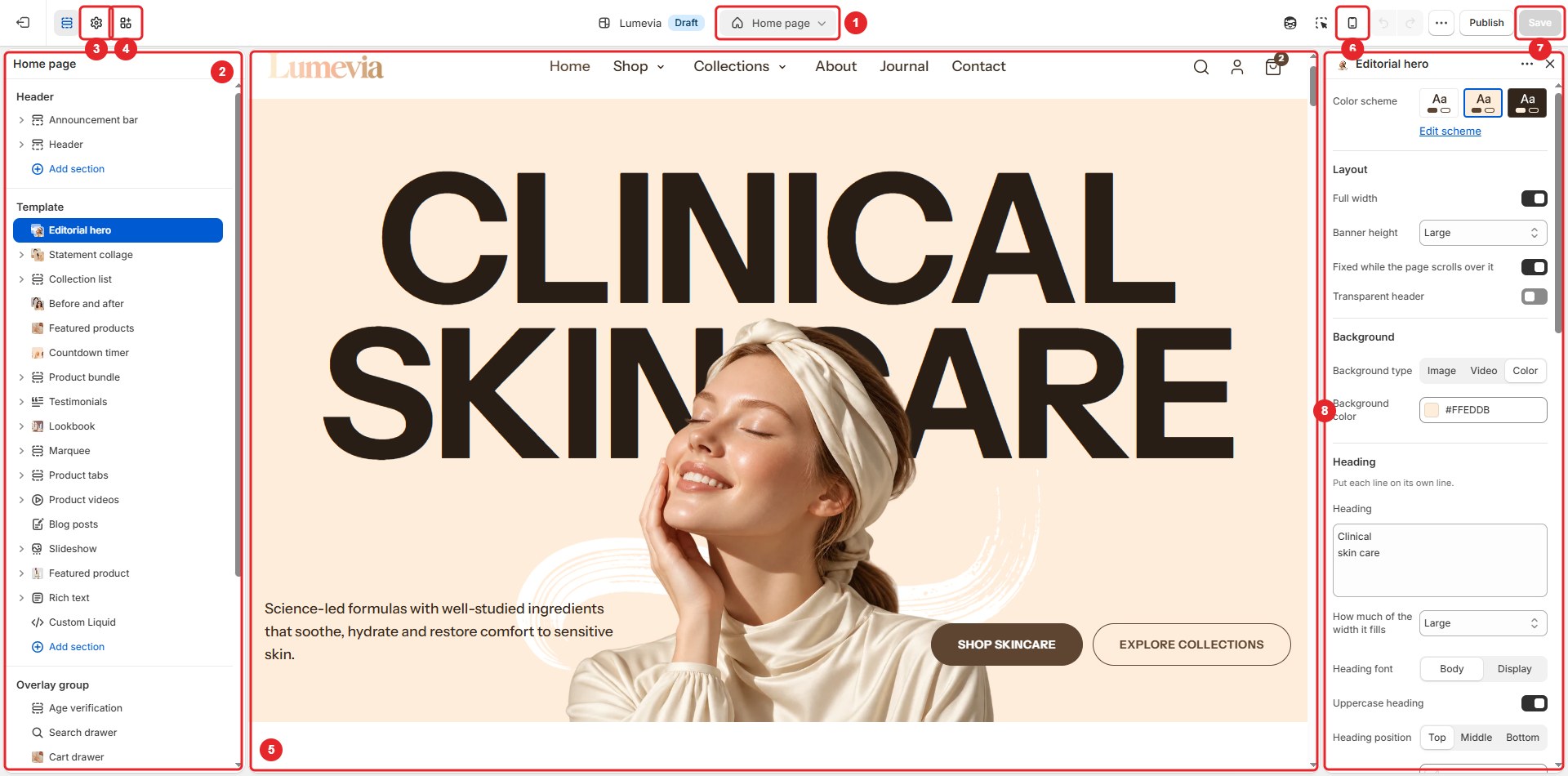
| Part | What it does | |
|---|---|---|
| 1 | Page selector | Chooses which page you are editing: the home page, a product, a collection, the cart and so on. |
| 2 | Sidebar | The sections of that page, top to bottom. Click one to edit it. |
| 3 | Theme settings | The gear opens settings for the whole store: colors, fonts, buttons, product cards and more. |
| 4 | App embeds | Turns on apps that add something to every page, such as a chat button or a reviews script. |
| 5 | Preview | Your store as customers will see it, updated as you change settings. Click anything in it to select it. |
| 6 | Mobile preview | Shows the page at phone size, so you can check it on a small screen. |
| 7 | Save | Saves your changes. On a draft theme, Publish sits beside it. |
| 8 | Settings | The settings of the section or block you selected. |
Sections and blocks
Every page is made of sections, stacked from top to bottom, and many sections are made of blocks: the slides of a slideshow, the questions of an FAQ, the columns of the footer.
- Add a section with Add section in the sidebar, or a block with Add block under its section.
- Reorder them by dragging the handle that appears to the left of the name when you point at it.
- Hide one with the eye icon, without losing its settings. Remove it with the bin icon.
- Select one in the sidebar or in the preview to open its settings.
What a change applies to
| You change | It applies to |
|---|---|
| Theme settings | The whole store. |
| A section in the Header or Footer group | Every page. |
| A section in the Overlay group | Every page. These are the panels that open over a page: the cart drawer, the search drawer, quick view, the popup, age verification and the mobile navigation bar. Select one to open it in the preview. |
| A section in the Template list | Every page that uses that template, such as every product that uses the default product template. |
To give some products, collections or pages a different layout, create a new template from the page selector and assign it to them in the Shopify admin.
Saving and undoing
Nothing you change reaches customers until you click Save. To step back through your changes, use the undo and redo arrows at the top right.
Tip
The preview is narrower than your screen, because the sidebar and the settings panel take room. On a laptop it can show the layout Lumevia uses on tablets. To see the full desktop layout, look at the store in its own browser tab.