Appearance
Product page
The product page shows one product: its gallery on one side and its details on the other, followed by sections that tell the product's story. Every product uses the Default product template unless you assign it another one in the Shopify admin.
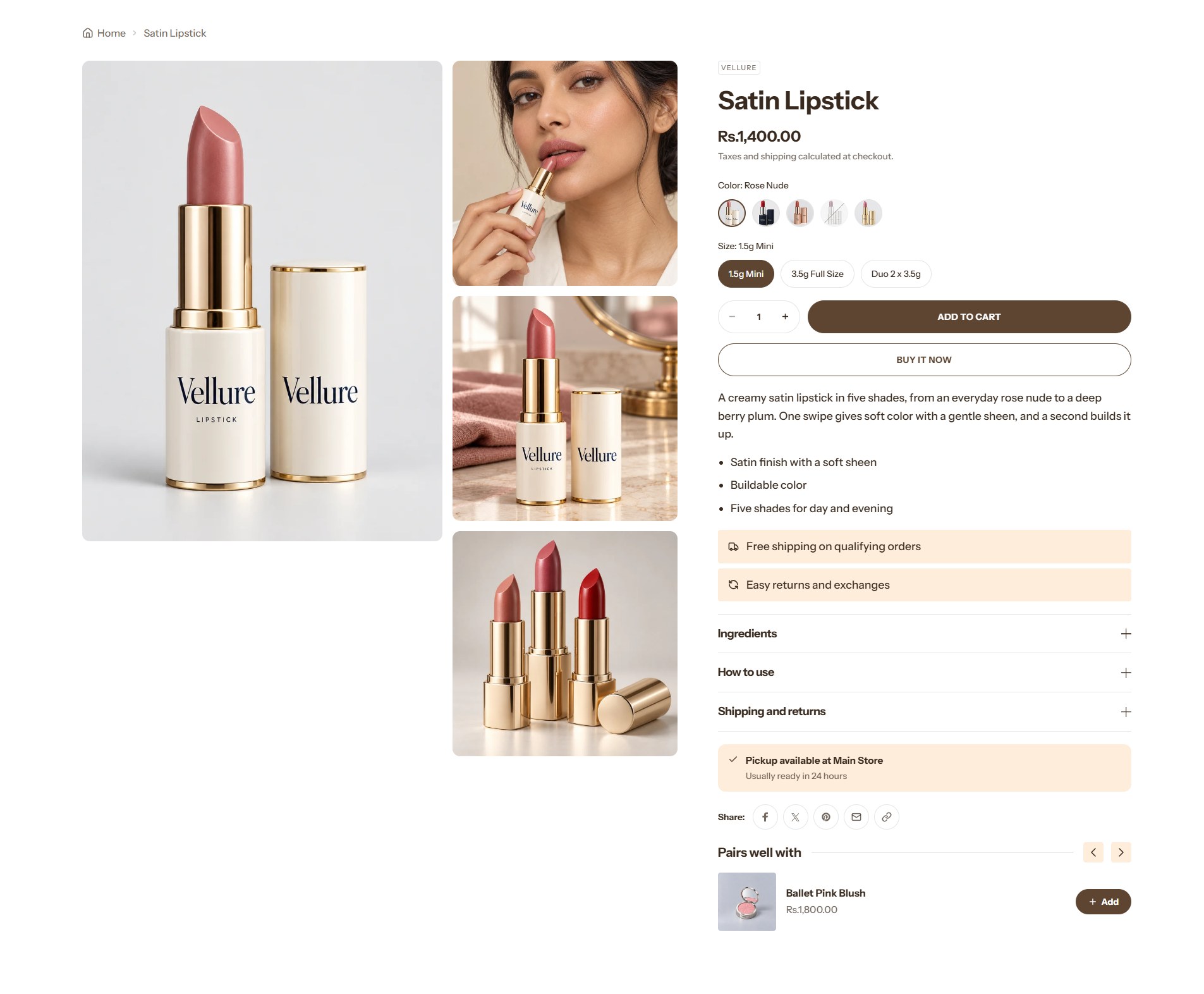
The sections on the product page
| Section | What it does |
|---|---|
| Product information | The gallery and the details column, described on this page |
| Marquee | Scrolling lines of words or logos |
| Feature showcase | The product's features beside a picture or video |
| Spotlight cards | Cards that open to reveal more about each ingredient or benefit |
| Media banner | A large picture or video that grows as it scrolls in |
| FAQ | Questions and answers about the product |
| Product recommendations | Related or complementary products |
To open the template in the editor, choose Products → Default product from the page menu at the top of the editor.
Product information
Find it in the editor
Product information is the first section of the product template. The details column is built from blocks, listed under the section in the sidebar; drag them to change their order.
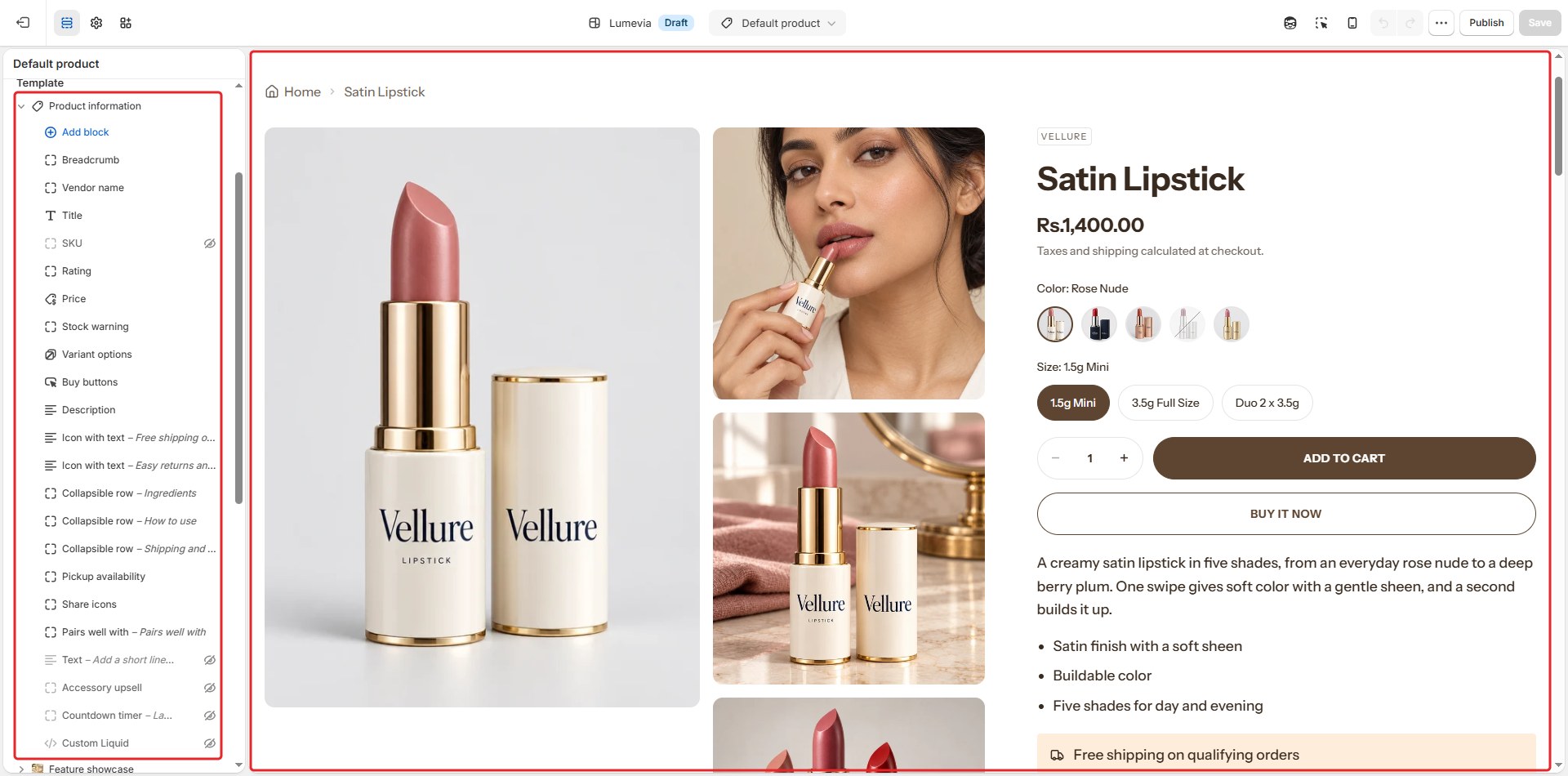
General
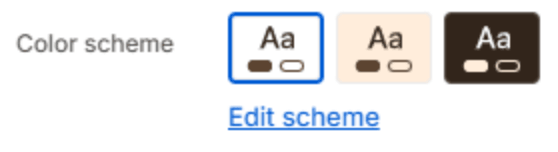
| Setting | Description |
|---|---|
| Color scheme | The colors of this section. Schemes are edited in Theme settings → Colors. |
Layout
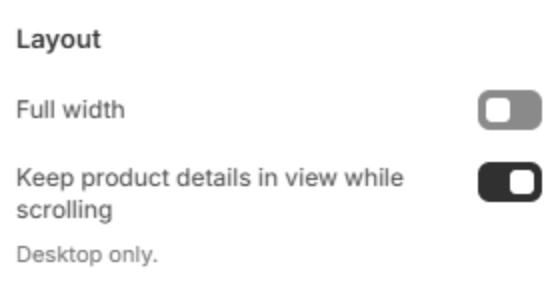
| Setting | Description |
|---|---|
| Full width | Runs the section from edge to edge instead of within the page width. |
| Keep product details in view while scrolling | While the customer scrolls through a long gallery, the details column stays in view beside it. Desktop only. |
Media
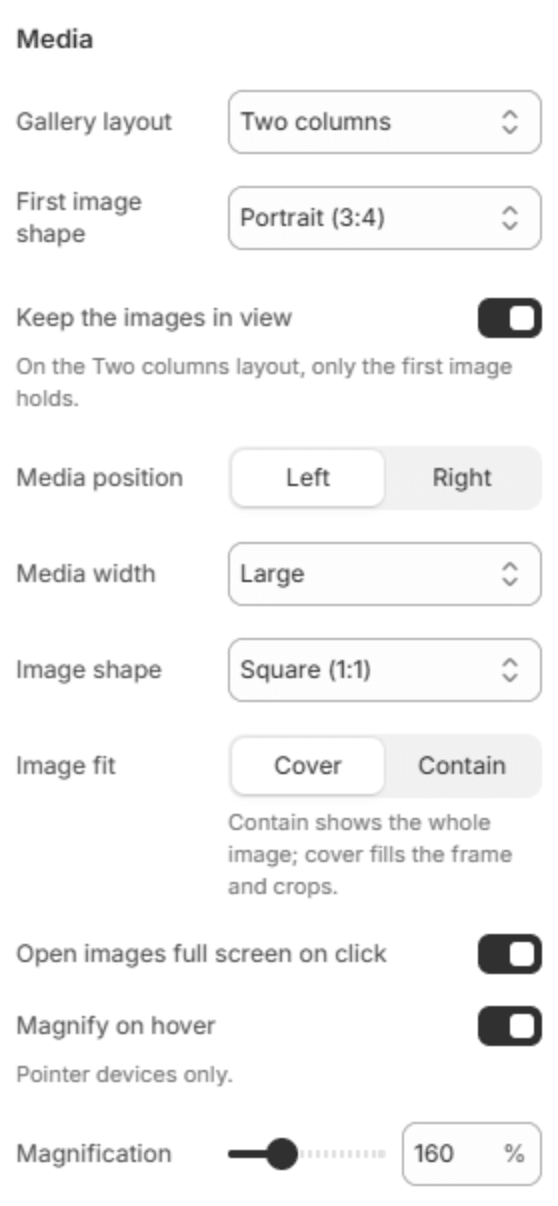
| Setting | Description |
|---|---|
| Gallery layout | How the product's photos and videos are laid out: one large image with Thumbnails left of the image, right of the image or below the image; Two columns of images; a Mosaic of mixed sizes; or a Grid. |
| First image shape | The shape of the first, larger image in the Two columns layout, or Same as the others. Shown when Gallery layout is Two columns. |
| Keep the images in view | While the customer scrolls through long details, the images stay in view. In the Two columns layout only the first image stays. |
| Thumbnail size | Small, Medium or Large. Shown for the thumbnail layouts. |
| Show thumbnails on mobile | Shows the thumbnails under the image on phones. Off, customers swipe the main image to see the others. Shown for the thumbnail layouts. |
| Grid columns | 1 or 2 images across. Shown when Gallery layout is Grid. |
| Media position | Puts the gallery on the Left or Right of the details. |
| Media width | How much of the width the gallery takes: Small, Medium or Large. |
| Image shape | The shape of the images: Square (1:1), Portrait (4:5), Portrait (3:4), or Adapt to first image. |
| Image fit | Cover fills the shape and crops the edges; Contain shows the whole image inside it. Shown unless Image shape is Adapt to first image. |
| Never taller than the screen | Keeps the main image short enough to fit the screen with its thumbnails. Shown for the thumbnail layouts. |
| Open images full screen on click | Clicking an image opens it full screen, where customers can zoom and swipe. |
| Magnify on hover | Magnifies the part of the image under the pointer. Computers only. |
| Magnification | How much it magnifies (120–250%). Shown when Magnify on hover is on. |
Video
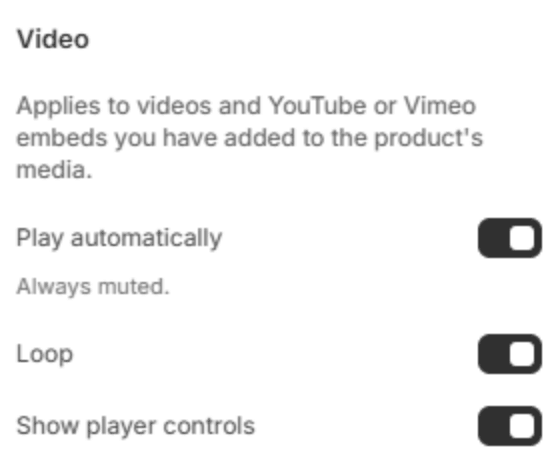
These apply to videos, and YouTube or Vimeo links, that you add to the product's media in the Shopify admin.
| Setting | Description |
|---|---|
| Play automatically | Starts the video as soon as it is shown, without sound. |
| Loop | Plays the video again from the start when it ends. |
| Show player controls | Shows the play, pause and progress controls. |
Buying
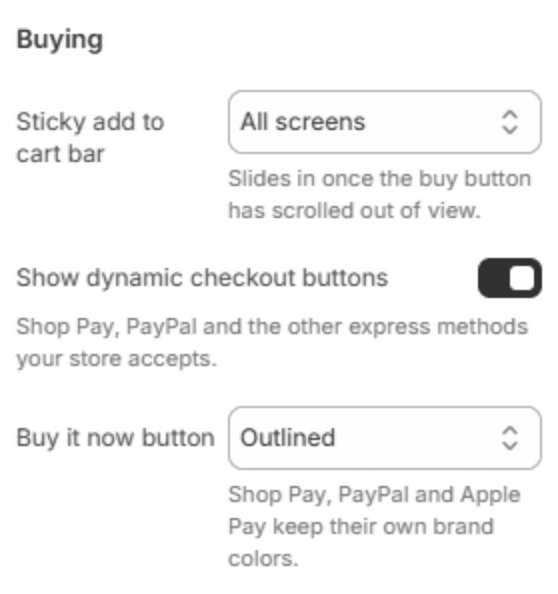
| Setting | Description |
|---|---|
| Sticky add to cart bar | A bar with the product, its price and Add to cart that slides in once the buy button has scrolled out of view: Off, Mobile only, or All screens. |
| Show dynamic checkout buttons | Shows Shop Pay, PayPal and the other express checkout buttons your store accepts, under Add to cart. |
| Buy it now button | How the Buy it now button looks: Outlined, Same as Add to cart, or Shopify default. Shop Pay, PayPal and Apple Pay always keep their own brand colors. Shown when dynamic checkout buttons are on. |
Section spacing

| Setting | Description |
|---|---|
| Use custom spacing | Gives this section its own top and bottom spacing. Off, it uses Section spacing from Theme settings → Layout. |
| Top spacing | Space above the section (0–200px). Phones get 60% of it and tablets 80%. Shown when Use custom spacing is on. |
| Bottom spacing | Space below the section (0–200px). Phones get 60% of it and tablets 80%. Shown when Use custom spacing is on. |
Blocks of the details column
Add blocks with Add block under Product information in the sidebar, and drag them into the order you want. Most can be added once; Text, Custom Liquid, Icon with text and Collapsible row can be added as often as you like. Apps can add their own blocks here too.
Breadcrumb

The trail back to the collection or the home page. When the customer came from a collection, that collection is the middle step; on a direct link it reads Home and the product.
| Setting | Description |
|---|---|
| Position | Above the product, across the page, or In the details column. |
Vendor name
The product's vendor, as a small label. It has no settings.
Title
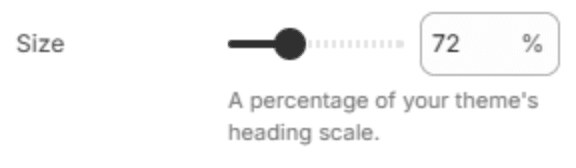
| Setting | Description |
|---|---|
| Size | The size of the product's title, as a share of the theme's heading size (50–120%). |
Price

| Setting | Description |
|---|---|
| Show discount badge | Shows the sale badge beside a reduced price. The badge's look is set in Theme settings → Badges. |
| Show tax and shipping note | Shows a short line under the price about tax and shipping, worded from your store's tax settings. |
| Show Shop Pay installments | Shows how the price splits into installments with Shop Pay, where your store offers it. Shopify works out the amounts from your own terms. |
Rating
The product's star rating and review count. It reads the reviews.rating and reviews.rating_count metafields, which most product review apps fill in; see Product reviews. A product without reviews shows nothing here.
SKU
The SKU of the chosen variant. It updates as the customer chooses options, and has no settings.
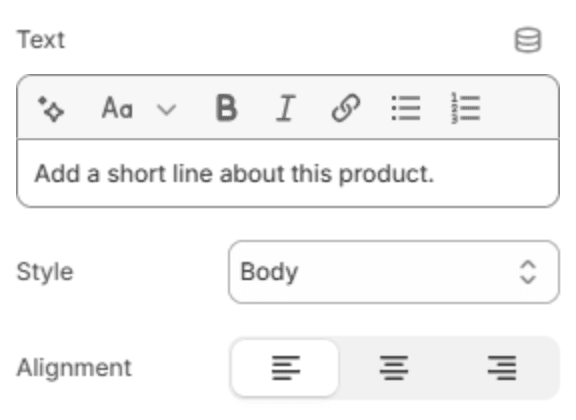
Text
| Setting | Description |
|---|---|
| Text | A short text, for example a one-line promise about the product. |
| Style | Body, a larger Subtitle, or small Uppercase letters. |
| Alignment | Left, center or right. |
Description
The product's description, from the Shopify admin. It has no settings here.
Stock warning
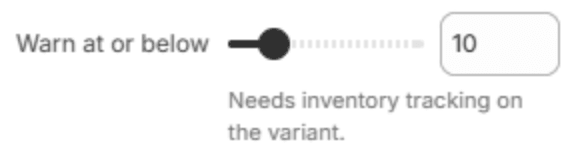
Tells the customer when only a few are left of the chosen option.
| Setting | Description |
|---|---|
| Warn at or below | The stock level at which the warning shows (1–50). It needs inventory tracking turned on for the variant. |
Variant options

The product's options, such as shade and size. Choosing an option updates the price, the photos and the stock.
| Setting | Description |
|---|---|
| Choice style | Automatic shows swatches for the option set in Theme settings → Variant images and labeled buttons for the rest; Swatches and Labeled pills use one style for every option. |
| Swatch type | What a swatch shows: Same as theme settings, a Color, or a Product photo. Shown unless Choice style is Labeled pills. |
Quantity selector
A quantity box with minus and plus buttons, on its own row. It has no settings. Buy buttons can show the quantity beside Add to cart instead.
Buy buttons
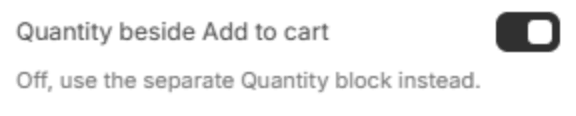
Add to cart, and the express checkout buttons if they are turned on in the section's Buying settings.
| Setting | Description |
|---|---|
| Quantity beside Add to cart | Puts a quantity box beside the button. Turn it off if you use the separate Quantity selector block. |
Accessory upsell
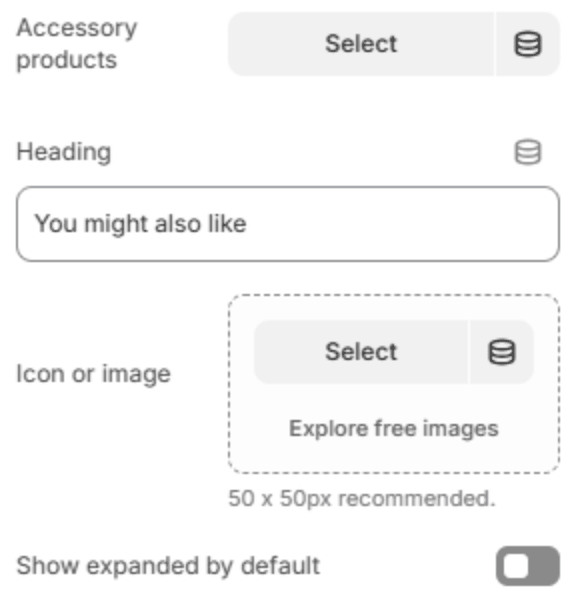
A short list of add-ons, such as a brush or a travel size, that the customer can tick to add to the cart with the product.
| Setting | Description |
|---|---|
| Accessory products | The products to offer. |
| Heading | The list's heading. |
| Icon or image | A small picture beside the heading (50 x 50px). |
| Show expanded by default | Opens the list when the page loads. Off, the customer opens it. |
Pickup availability
Shows whether the chosen variant can be picked up in store, and where. It appears once you set up local pickup in the Shopify admin under Settings → Shipping and delivery, and has no settings.
Icon with text

A short note with an icon, such as delivery times or a guarantee. Several in a row read as one list.
| Setting | Description |
|---|---|
| Icon | The icon, from the theme's icon set, or None. |
| Text | The note. |
Countdown timer
A countdown for a launch or a limited offer on this product.
General
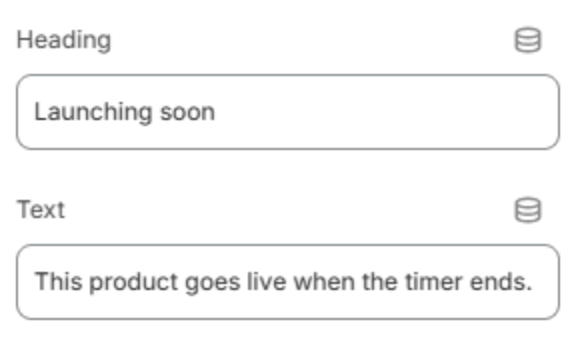
| Setting | Description |
|---|---|
| Heading | The heading above the timer. |
| Text | A line under the heading. |
Deadline
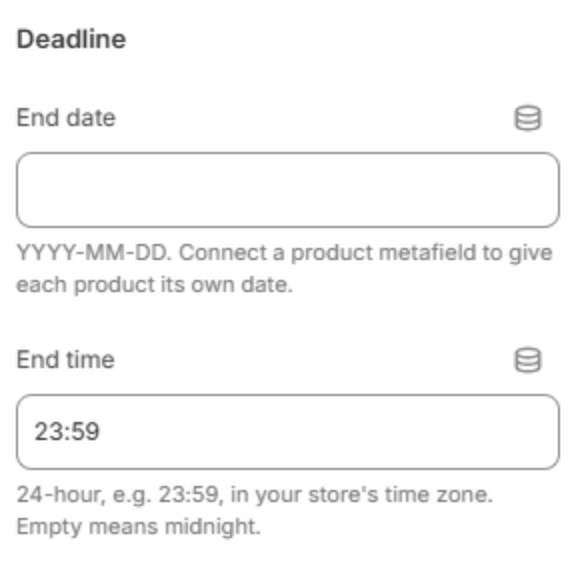
| Setting | Description |
|---|---|
| End date | The day it ends, as YYYY-MM-DD. To give each product its own date, connect a product metafield to this field (see the hint below). |
| End time | The time, in 24-hour HH:MM and your store's time zone. Empty means midnight. |
Display
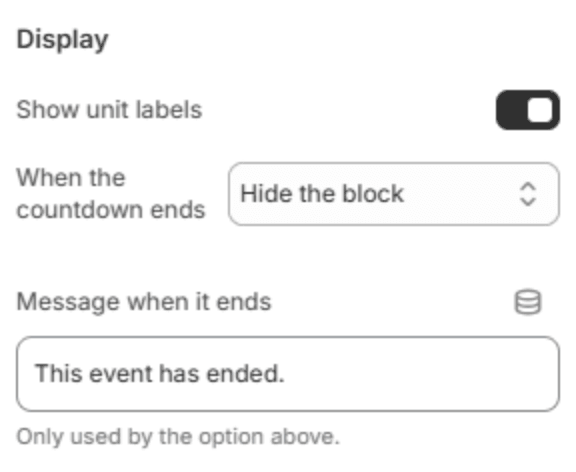
| Setting | Description |
|---|---|
| Show unit labels | Shows Days, Hours, Minutes and Seconds under the numbers. |
| When the countdown ends | Hide the block, or Show a message in its place. |
| Message when it ends | The message, used when When the countdown ends is Show a message. |
Note
A different date for each product. Create a product metafield of type Date (for example custom.launch_date) in Settings → Metafields and metaobjects → Products. In the editor, click the database icon beside End date and choose that metafield. Each product then counts down to its own date, and a product without a date shows no timer.
Collapsible row
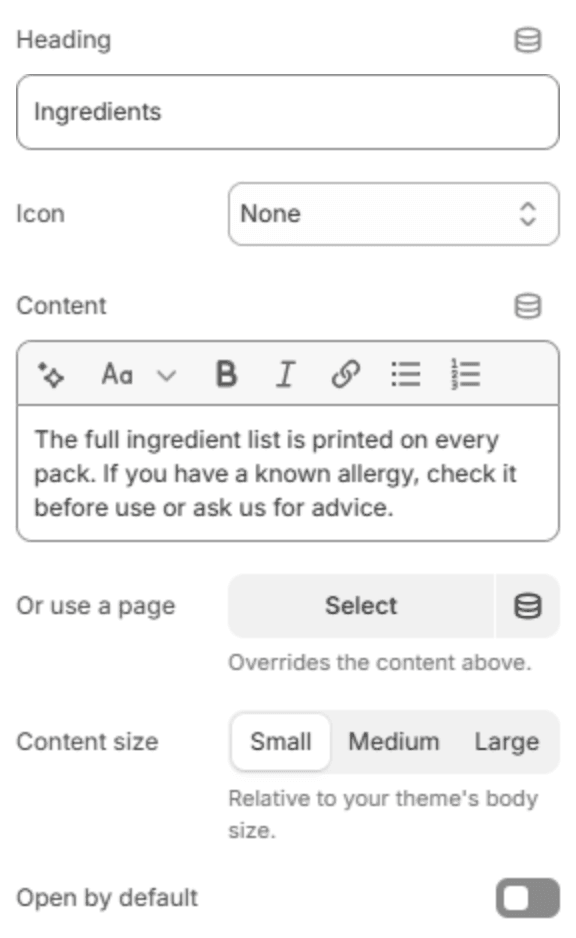
A heading that opens to show more, for ingredients, how to use, or shipping. Several in a row read as one list.
| Setting | Description |
|---|---|
| Heading | The row's heading. |
| Icon | An icon before the heading, or None. |
| Content | What the row shows when opened. To give each product its own text, connect a product metafield to this field. |
| Or use a page | Shows one of your pages instead, such as your shipping information. It replaces the content above. |
| Content size | Small, Medium or Large, compared with your body text size. |
| Open by default | Opens the row when the page loads. |
Share icons
Links to share the product on Facebook, X and Pinterest, and a button to copy its link. It has no settings.
Pairs well with
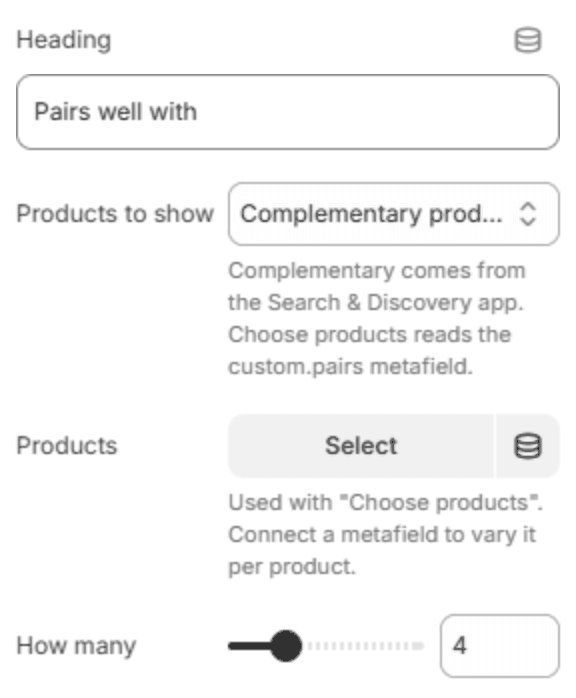
A small row of products that go with this one, each with its own add button.
| Setting | Description |
|---|---|
| Heading | The row's heading. |
| Products to show | Complementary products come from the Search & Discovery app; Choose products uses the products below. See Pairs well with. |
| Products | The products to show with Choose products. To give each product its own picks, connect the custom.pairs metafield to this field. |
| How many | How many complementary products to show (2–10). Shown when Products to show is Complementary products. |
Custom Liquid

| Setting | Description |
|---|---|
| Liquid code | Liquid, HTML or an app's snippet, for anything the other blocks don't cover. It is shown exactly as written and is not translated. |
Other product templates
Lumevia also includes a gift card product template, without the skincare sections; see Gift card. To make a template for a group of products, such as a different layout for makeup, choose Products → Create template in the editor's page menu, then assign it to products in the Shopify admin, in each product's Theme template setting.