Appearance
Article page
The article page shows one blog post: its title in a Page banner, then the post itself, with an optional sidebar for search, tags, a table of contents, recent posts and the author. Under the post come its tags, sharing, links to the previous and next posts, comments, and the Related posts section.
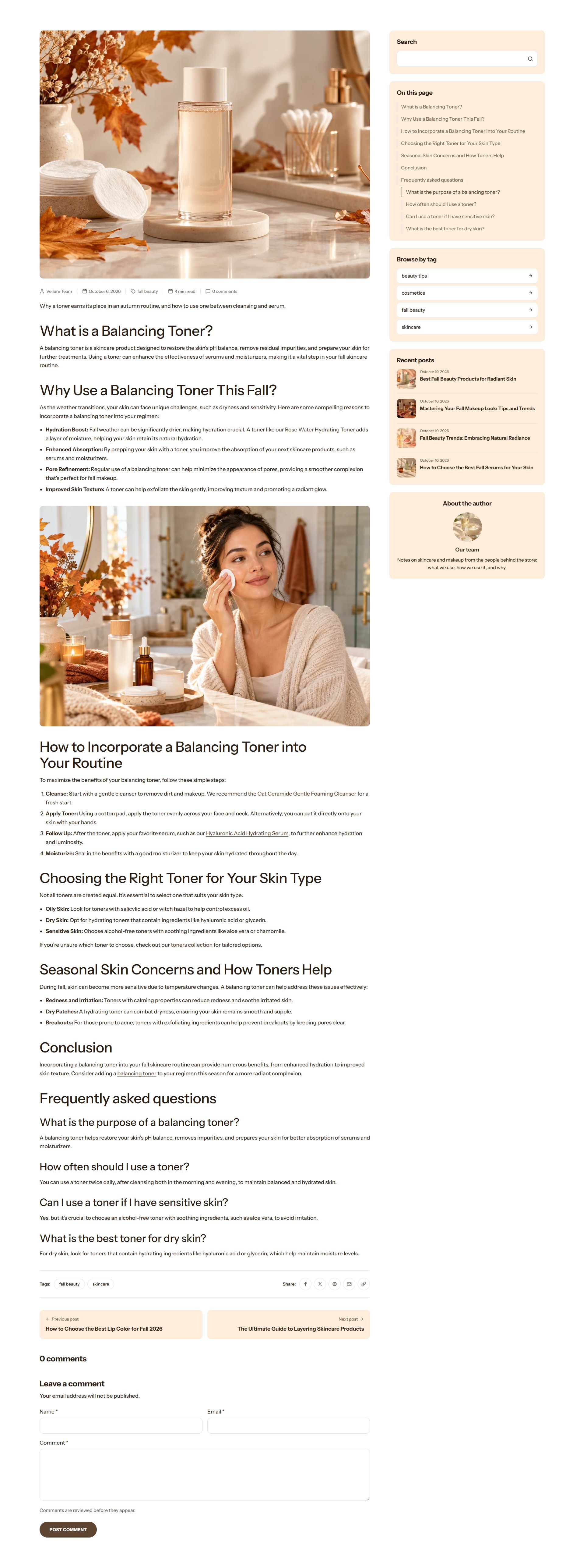
To open it in the editor, choose Blog posts → Default blog post from the page menu at the top of the editor. The post and its sidebar are the Article section; each part is a block.
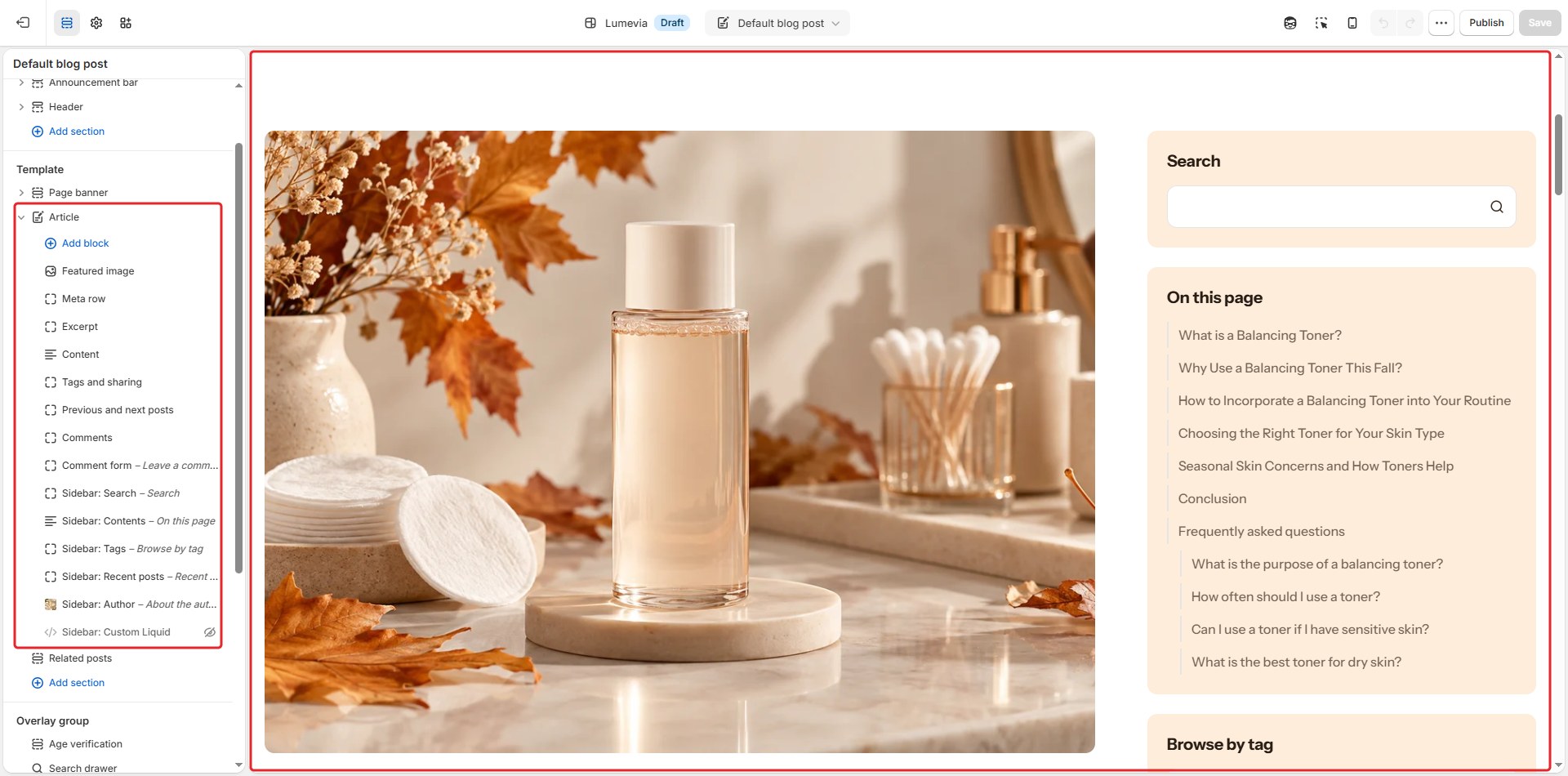
Section settings
| Setting | Description |
|---|---|
| Color scheme | The colors of this section. Schemes are edited in Theme settings → Colors. |
| Layout | With sidebar sets the post beside a column of sidebar blocks; Full width gives the post the page, without a sidebar. |
| Content width | How much of the page the post fills (60–100%). Shown when Layout is Full width. |
| Sidebar position | Puts the sidebar on the Left or Right. Shown when Layout is With sidebar. |
| Keep the sidebar in view | The sidebar stays in view while the customer reads, as long as it is shorter than the screen. Shown when Layout is With sidebar. |
| Heading font | The font of the headings inside the post: Display (the heading font) or Body. The title in the banner always uses the heading font. |
| Body text size | Small, Medium or Large. |
| Reading progress bar | A thin bar at the top of the screen that fills as the customer reads. |
Section spacing
| Setting | Description |
|---|---|
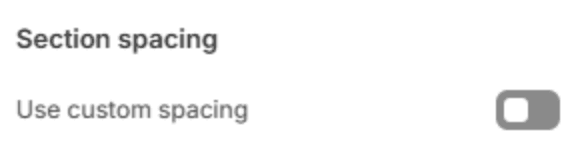
| Use custom spacing | Gives this section its own top and bottom spacing. Off, it uses Section spacing from Theme settings → Layout. |
| Top spacing | Space above the section (0–200px). Phones get 60% of it and tablets 80%. Shown when Use custom spacing is on. |
| Bottom spacing | Space below the section (0–200px). Phones get 60% of it and tablets 80%. Shown when Use custom spacing is on. |
Blocks of the post
Add blocks with Add block under Article in the sidebar, and drag them into the order you want. Each can be added once. Apps can add their own blocks here too.
Featured image

The post's featured image, from the Shopify admin.
| Setting | Description |
|---|---|
| Image ratio | Adapt to image, Landscape (4:3), Wide (16:9), Square (1:1) or Portrait (3:4). |
Excerpt
The excerpt written on the article in the Shopify admin, as an introduction above the post. It shows nothing when the article has no excerpt.
Meta row
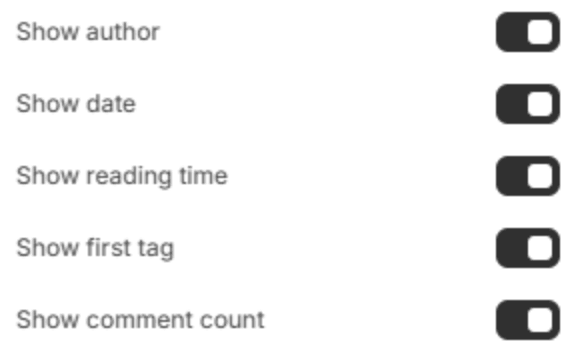
A line of facts about the post.
| Setting | Description |
|---|---|
| Show author | Shows the post's author. |
| Show date | Shows when the post was published. |
| Show reading time | Shows about how many minutes the post takes to read. |
| Show first tag | Shows the post's first tag. |
| Show comment count | Shows how many comments the post has. |
Content
The post itself. It has no settings.
Tip
Inside your post, use Heading 2 and smaller headings. The article's title, in the page banner, is already the page's main heading, and a second one confuses search engines and screen readers.
Note
In your posts, use Heading 2 and smaller for headings. The title in the banner is already the page's one Heading 1, and a second one makes the page harder to read for search engines and screen readers.
Tags and sharing
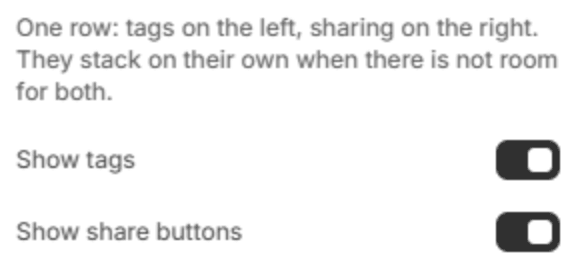
One row under the post: its tags on the left and share buttons on the right. They stack when there isn't room for both.
| Setting | Description |
|---|---|
| Show tags | Shows the post's tags, each linking to the blog's posts with that tag. |
| Show share buttons | Shows buttons to share the post on Facebook, X and Pinterest, and to copy its link. |
Previous and next posts
Links to the posts before and after this one in the blog. It has no settings.
Comments
The post's approved comments. It has no settings, and shows when comments are turned on for the blog (see the hint below).
Comment form
| Setting | Description |
|---|---|
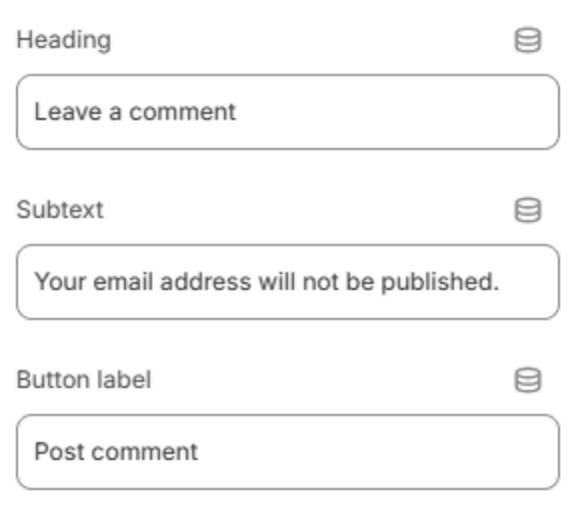
| Heading | The heading above the form. |
| Subtext | A line under the heading, for example that email addresses aren't published. |
| Button label | The text of the submit button. |
Note
Turning comments on: in the Shopify admin, go to Content → Blog posts → Manage blogs, open the blog, and choose whether comments are allowed, and whether you approve them first.
Blocks of the sidebar
These blocks fill the sidebar, when Layout is With sidebar.
Sidebar: Search

A search box for the blog's posts.
| Setting | Description |
|---|---|
| Heading | The heading above the box. |
Sidebar: Tags

The tags used in this blog, each linking to its posts. Shopify blogs use tags where other platforms use categories.
| Setting | Description |
|---|---|
| Heading | The heading above the tags. |
| Tags to show | How many tags to list (3–20). |
Sidebar: Contents

A table of contents built from the post's headings, highlighting the part the customer is reading. It hides itself on posts with too few headings to need one.
| Setting | Description |
|---|---|
| Heading | The heading above the list. |
| Minimum headings | How many headings a post needs before the table shows (2–8). |
| Include subheadings | Lists the smaller headings too, under their main heading. |
Sidebar: Recent posts

| Setting | Description |
|---|---|
| Heading | The heading above the list. |
| Posts to show | How many recent posts to list (2–8). |
Sidebar: Author

A card about the author.
| Setting | Description |
|---|---|
| Heading | The heading above the card. |
| Photo | The author's photo. |
| Name | The author's name. Leave it empty to use the post's author. |
| Bio | A few lines about the author. |
Sidebar: Custom Liquid

| Setting | Description |
|---|---|
| Liquid code | Liquid, HTML or an app's snippet for the sidebar, such as a newsletter form from your email app. It is shown exactly as written and is not translated. |